Human handoff

Sometimes the AI isn't enough. Live Chat lets a teammate take over a conversation from the AI and talk to the chatter live.
For example, a visitor on your website wants to change an order the agent can't change. They ask for a person, your support lead gets an alert, opens the chat in the Inbox and answers them directly. When the problem is solved, the lead gives the chat back to the AI.
Live Chat works in the Chat Widget only. Conversations on Hosted Chat, the Command Bar or a messaging channel can be read, but not joined.
Needs a license key
Live Chat needs a license key on your Chatvia install. Without one, nobody can take over a chat, and blocked topics that should go to a person get the refusal message instead. If the key ends while a teammate holds a chat, they can finish it. Your Live Chat settings are kept. See What needs a key.
Turning it on
Open the agent's Setup page, pick the Chat Widget tab, and open Behavior. Turn on Live Chat. It is on by default for new agents.
When it is off, nobody can take over the agent's chats, and blocked topics that should go to a person get the refusal message instead.
How a chat reaches a person
There are two ways:
- A teammate takes over. Any chat in the Chat Widget can be taken over at any time, from the Inbox or the Chatlog. See below.
- A blocked topic hands off. On the agent's Guardrails page, a blocked topic can send the visitor to A person from your team. When a message matches that topic, the conversation moves into a pending state and the visitor sees "Waiting for an available agent...". You can add your own message to show while they wait.
Notifications
When a visitor waits for a person, everyone who may take over the agent's chats gets a notification: "A visitor wants to talk to a person".
Each person chooses how they hear about it, in their account settings under Notifications → Handoffs: the bell in the dashboard, a desktop alert, and a sound. Desktop alerts and the sound are on for handoffs by default. See Notifications.
Taking over from the Inbox
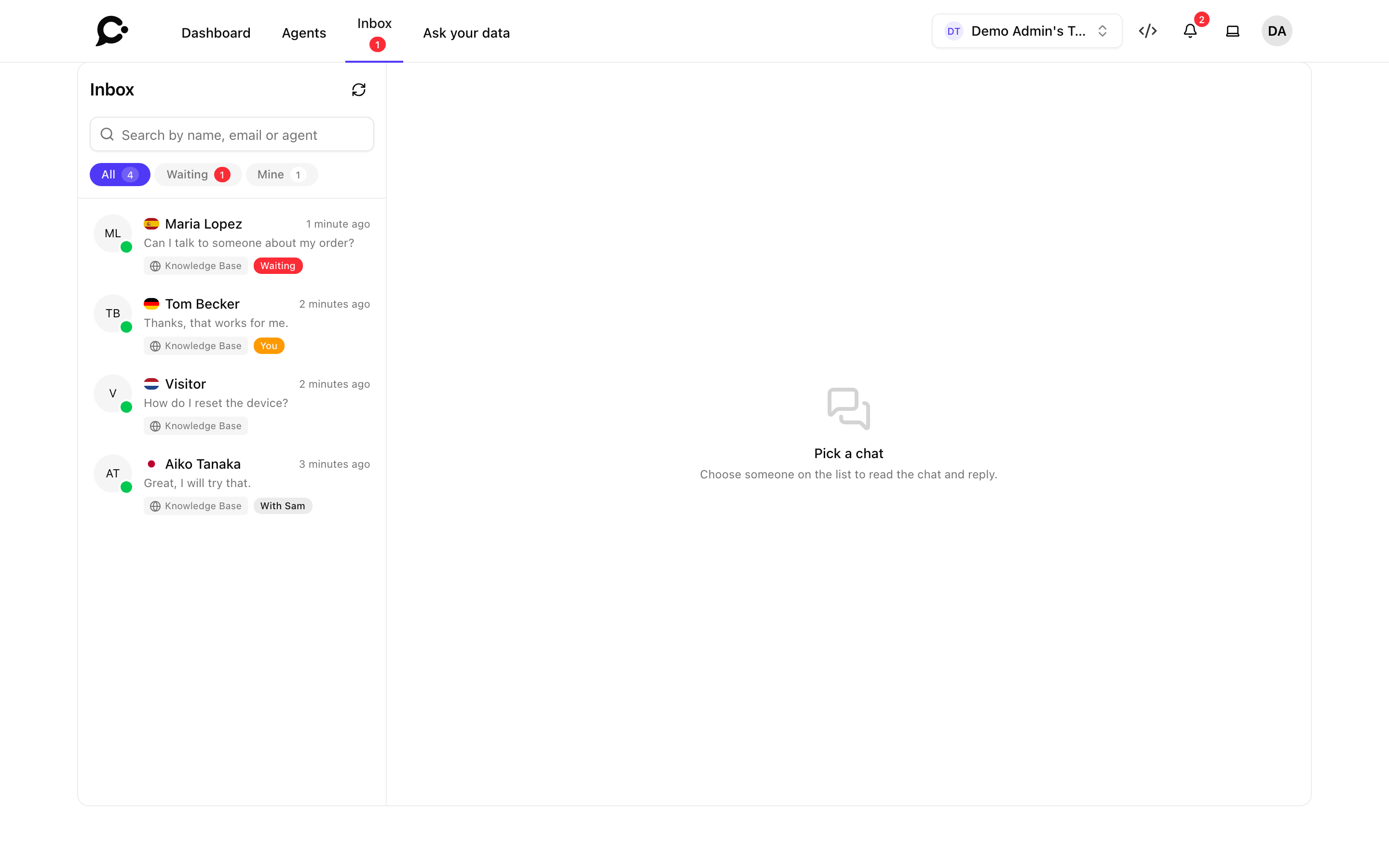
The Inbox in the dashboard lists the people chatting with all your workspace's agents while they are online. People waiting for a person come first, with a red Waiting badge, and the Waiting filter shows only them.
Pick a chat to read it. When you send a reply, you take over the chat from the AI. If someone else is already replying, the Inbox says so. See Inbox for the whole page.
Taking over from the Chatlog
Open the conversation in the agent's Chatlog and pick the Live chat tab. Click Take over. The tab shows whether the visitor is online.
Your role must allow taking over chats. If it doesn't, you can read the chat but not join it.
During the live chat
Messages flow both ways instantly. You see when the visitor is typing, and they see when you are. Your messages show Sent and Read. Past messages from the AI stay in the thread for context.
Returning to the AI
When you are done, click Give back to AI in the Inbox, or Return to AI in the Chatlog. The chat switches back to AI mode and the chatter's next message goes through the model again.
The visitor can also end the live chat with End Chat in the widget.
What the chatter sees during handoff
- Pending: "Waiting for an available agent..." while nobody has joined yet.
- Connected: "You are now connected with {name}." Your replies appear under your name.
- Returned: "You're back with our AI assistant."
These messages are built into the widget, in all its languages.
When to disable handoff
If the workspace doesn't have teammates available, turn Live Chat off. Keeping it on without staffing it is worse than not having it. Chatters wait, time out, and leave frustrated.