Platform settings

This page holds the options for the whole install that fit nowhere else: the app's name and logo, the default language, a tracking code, visitor location, queue alerts, error reports to Sentry, what makes PDFs, update checks, the number of queue workers, the programs that read files, custom domains for agents, and the Logs page. Open it in the admin panel under Settings → Platform. The Chat Widget options are on their own page, Widget.
Most of this page is about the server, the computer your install runs on. The person who runs that server needs it after the install, and again when the server changes, for example when it gets more memory. A marketer may come here once, to add a tracking code. If you never open this page, Chatvia speaks English to people who have not chosen a language, adds no tracking code, sends no alerts, and runs with workers sized for a small server.
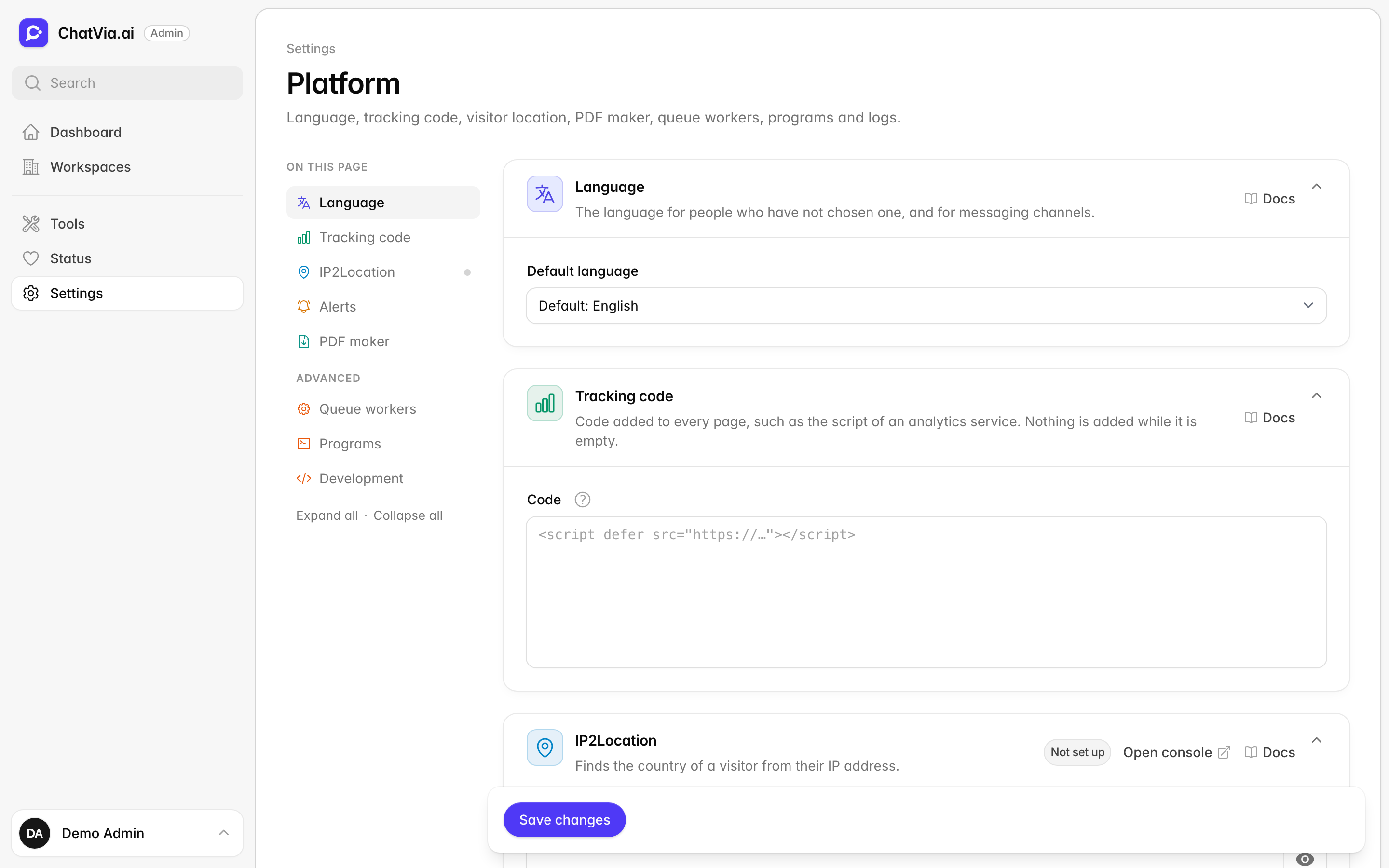
A blank field uses its default, which the field shows in grey. A change applies right away, also to the queue workers, unless the option says otherwise. The last four cards are listed under Advanced and start closed. The defaults suit most installs.
App name
The name people see in browser tabs, the dashboard, the admin panel and emails.
Your install is called ChatVia.ai until you give it a name of your own. The name shows in the title of each browser tab ("Agents - Acme Support"), in the dashboard's welcome tour, and in the emails your install sends. For example, if your company is called Acme and your team knows the tool as "Acme Support", type that here, so nobody wonders what ChatVia.ai is.
App name is the name to show, up to 60 characters. The default is ChatVia.ai. You can also set it in the setup, on its Final step.
When to change it: when you want your team and your customers to see your own name instead of ChatVia.ai.
Logo
Your own icon in place of the ChatVia.ai mark, in the admin panel and on the sign-in and sign-up pages, and the favicons made from it. Needs a license key.
By default, the admin panel and the sign-in pages show the ChatVia.ai mark: a small icon with no text. It is dark on a light screen and light in dark mode. This card puts your own icon there instead. It shows at the top of the admin panel's menu, on the admin sign-in page, and on the pages where your team signs in, signs up and resets a password. For example, if your company has a round icon for its app, upload it here so your team sees your brand when they sign in.
Chatvia also makes the favicons from your icon. A favicon is the small icon in a browser tab, in bookmarks, and on a phone's home screen when someone adds the app there. Your favicons show on every page: the dashboard, the hosted chats, the sign-in pages and the admin panel.
Icon is the picture to show. Use a PNG, WebP or JPEG of at least 512 × 512 pixels and up to 2 MB. It must be square. If it is not, the page cuts it to a square before it uploads. A bigger picture keeps the large favicons sharp. The icon shows small, about the size of the mark, so a simple icon works best. One picture is used in light and dark mode, so pick one that is easy to see on both. There is no icon by default, and the ChatVia.ai mark and favicons show. To go back to them, remove the icon and save.
The card needs a license key of any kind. Without one, the field is greyed out. If a key is removed or runs out, the ChatVia.ai mark and favicons show again. Your icon stays saved and comes back when a key is added.
When to change it: when you want your team and your visitors to see your own brand, not ChatVia.ai, in browser tabs, when they sign in, and in the admin panel.
Language
The language for people who have not chosen one, and for messaging channels.
Chatvia is translated into several languages. Each person can pick one for themselves. This card decides which one is used for everyone who has not, and on messaging channels such as WhatsApp. For example, if your team and customers are in Germany, pick German here, so new teammates see the dashboard in German from their first visit.
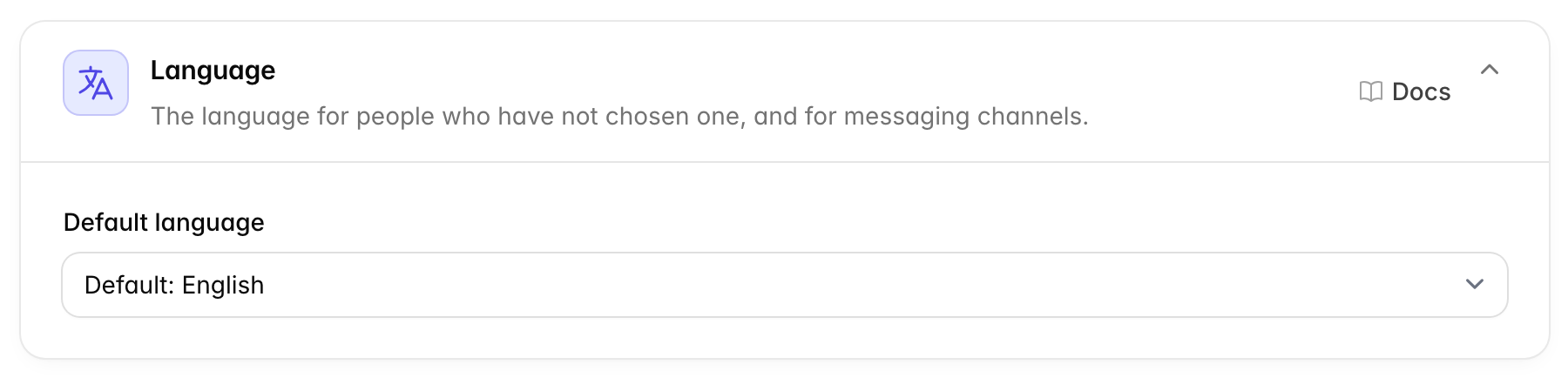
Default language is used when a person has not picked a language for themselves. It is also the language used for messaging channels. The default is English. Pick one of the languages Chatvia is translated into.
When to change it: when most of the people who use your install speak another language than English.
Tracking code
Code added to every page, such as the script of an analytics service. Nothing is added while it is empty.
A tracking code, also called an analytics script, is a small piece of code from a service such as Google Analytics or Plausible. Placed on a page, it tells that service each time someone opens the page, so you can see how many people visit and where they come from. This card puts such a code on the pages of your install.
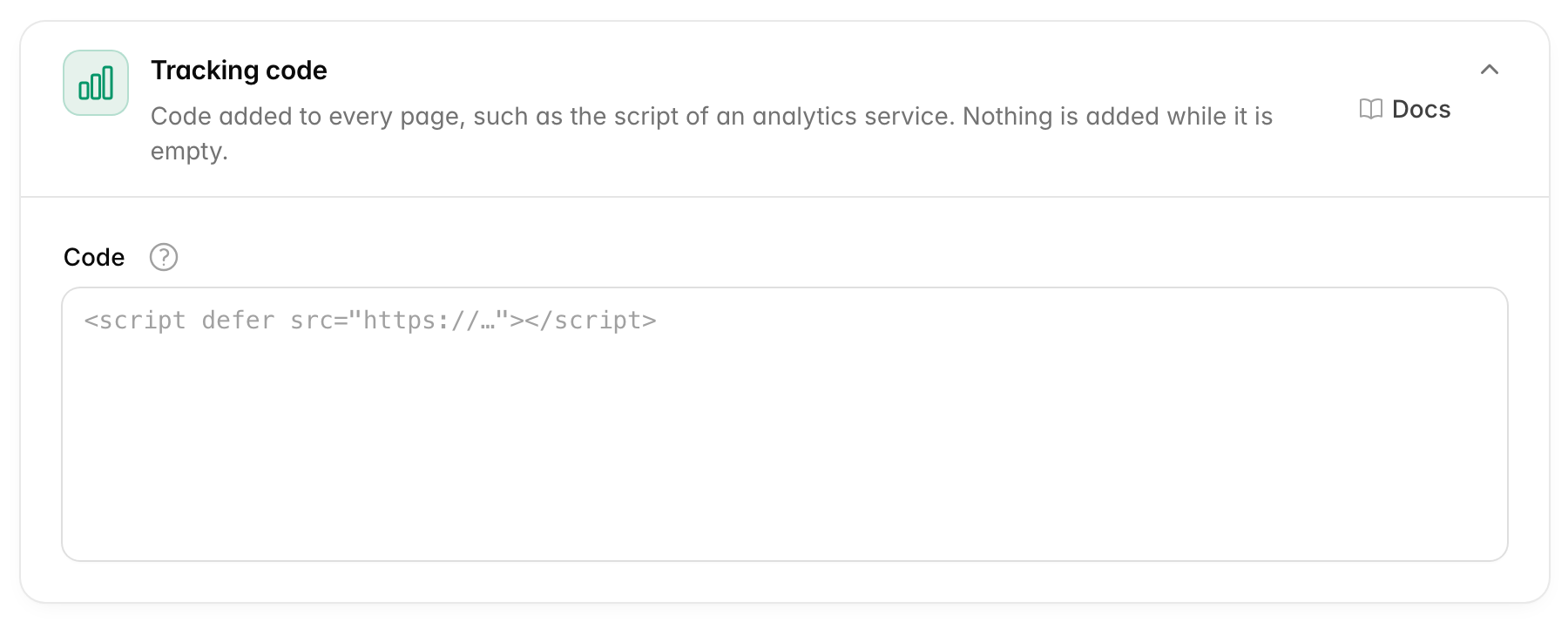
Paste the code your analytics service gives you into Code, for example a <script> tag. It is added as it is, to the head of the dashboard, the hosted chat and the sign-in pages. It is not added to the Chat Widget on other websites.
The code runs only when the install runs as the live site (APP_ENV=production in the environment file, the settings file on the server). On a test copy it is left out, so your statistics stay clean.
Only paste code you trust
The code runs on every page your users open. Only paste code from a service you trust.
When to change it: when you want to count visits to your hosted chats or your dashboard. To count visits to your own website, add the code to your website instead.
IP2Location
Finds the country of a visitor from their IP address.
Every device on the internet has an IP address, a number such as 203.0.113.7 that works like a return address on a letter. Looking up which country an IP address belongs to is called IP geolocation. Chatvia asks IP2Location, an outside service, to do this lookup. Then you can see that a chat came from France, and a workspace can let its teammates open the dashboard only from the countries it chooses.
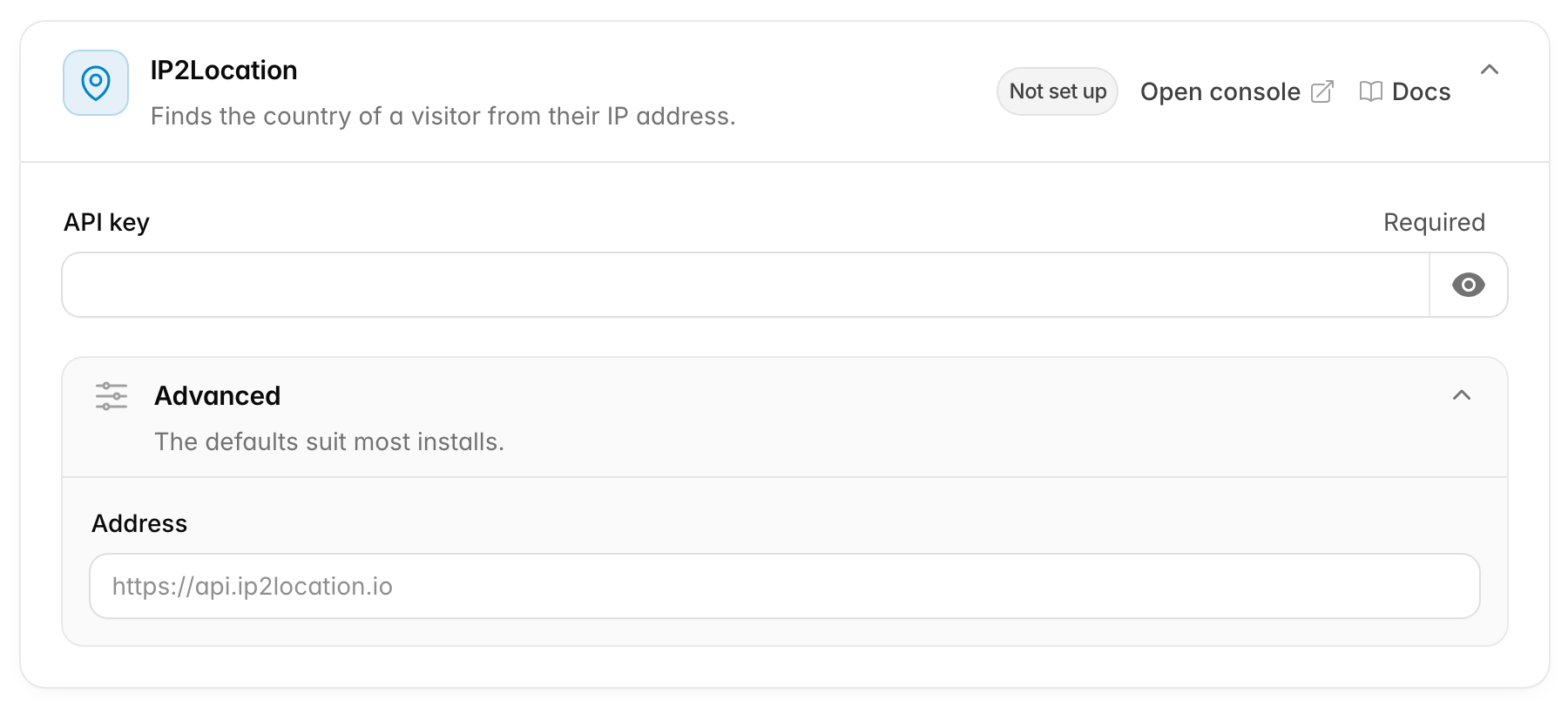
Chatvia uses the visitor's country for the location of a chat session and for the country rules of a workspace's IP allowlist. Paste your IP2Location.io key in API key. An API key is a long secret code that lets Chatvia use your account at that service, like a password made for an app. The Open console link opens your IP2Location dashboard, where you find the key. The card shows Ready to use once a key is saved.
- Behind Cloudflare, Chatvia first reads the country that Cloudflare sends with each request. It asks IP2Location only when Cloudflare sends none.
- Without a key, and without Cloudflare, visitors have no country. A country rule in an IP allowlist then lets the request through, so nobody is locked out by a failed lookup.
- Private and local IP addresses are never looked up.
The card's Advanced part has Address, the address of the IP2Location API. The default is https://api.ip2location.io. Change it only if IP2Location tells you to.
When to change it: add a key when you want to see where visitors chat from, or when a workspace limits its dashboard to some countries. You can skip it when your install already runs behind Cloudflare.
Alerts
Where the queue sends its alerts.
Some of Chatvia's work runs in the background, in a waiting line called a queue. The Queue workers card below explains it. When jobs sit in that line too long, something is wrong, and visitors may wait for replies. This card sends you an email when that happens, so you hear about it before your customers do.
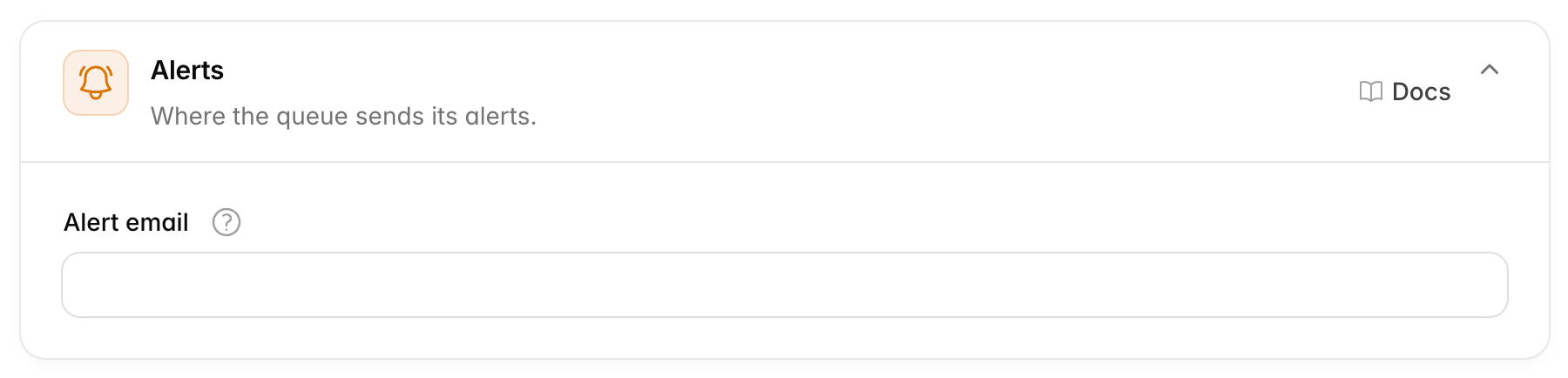
Alert email gets an email from the queue (Laravel Horizon) when background jobs wait too long to start. That usually means the workers are stopped, or there are too few of them. It is empty by default, so no alerts are sent.
- A change applies after the queue restarts. Use Restart queue in the Queue workers card below.
- The alerts are sent with the install's email settings, so email sending must work (Settings → Email).
When to change it: right after the install. Enter the address of the person who looks after the server, or of a shared team inbox.
Sentry
Sends errors to Sentry, so you see what went wrong on the server and in people's browsers.
Sentry is an outside service that collects errors. When something breaks, it shows you the error, the page or job where it happened, and how often it happens. Without it, you find most errors only in the log files on the server, or when someone tells you. For example, if the dashboard shows a blank page for one teammate, Sentry tells you which page broke and why.
In Sentry, a project collects the errors of one app. Each project has a DSN, an address that tells Chatvia where to send them. You find it in the project's settings, under Client Keys (DSN). The Open Sentry link opens your list of projects.
Server DSN is for errors on the server: in the dashboard's requests, in the queue and in scheduled tasks. Use the DSN of a Laravel project in Sentry. It is empty by default, so no server errors are sent. A change applies to the queue after it restarts. Use Restart queue in the Queue workers card below.
Browser DSN is for errors in people's browsers: in the dashboard and in the hosted chat. Use the DSN of a Vue project in Sentry. It is empty by default, so no browser errors are sent. Every page holds this DSN. That is safe: Sentry made it to be public, and it can only send errors, not read them.
You can fill in one DSN, both, or neither. Two projects keep the server's errors apart from the browser's, but one DSN in both fields also works. The card shows which errors are sent.
The card's Advanced part has Environment, the name Sentry shows for this install, such as production or staging. It helps when more than one install sends errors to the same project. When it is empty, Chatvia uses the environment of the app, which is production on a live install.
Error reports leave out what people type and who they are: no chat messages, form answers, cookies, IP addresses or names. The Chat Widget on other websites sends nothing to Sentry.
When to change it: when you want to hear about errors before your team or your customers report them. Create a project in Sentry, then paste its DSN here.
PDF maker
What makes PDFs: chat exports, and the PDF of an office file for its summary.
Chatvia sometimes needs to make a PDF file. When someone exports a chat, it becomes a PDF. When someone uploads a Word or other office file, Chatvia turns its text into a PDF first, because the AI that writes the file's summary reads only PDFs. This card picks the tool that makes those PDFs. One choice is a program on your own server. The other two are headless browsers: a web browser with no window, run by a machine, that opens a page and saves it as a PDF.
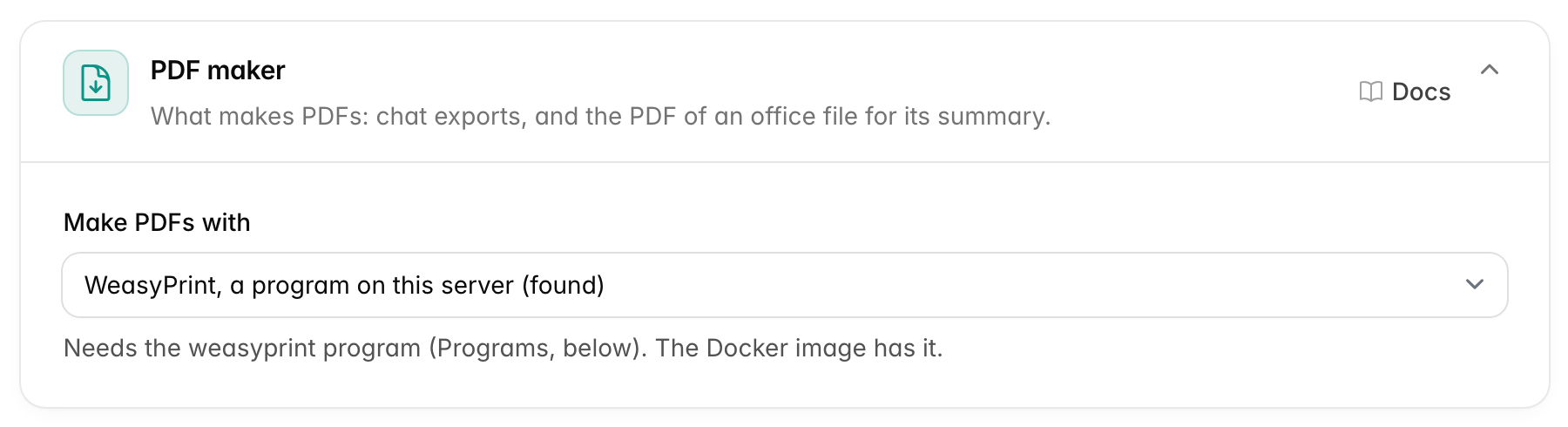
Make PDFs with has three choices:
| Choice | What it needs |
|---|---|
| WeasyPrint, a program on this server (the default) | The weasyprint program on the server. The list says (found) or (not found). The Docker image has it. |
| Cloudflare Browser Rendering | A Cloudflare account. Cloudflare makes the PDFs in its own browser, so there is nothing to install. |
| Gotenberg, your own server | A Gotenberg server that you run, such as the gotenberg/gotenberg Docker image. |
Pick Cloudflare or Gotenberg when you cannot install programs on your server.
For Cloudflare Browser Rendering, fill in:
- Account ID: shown on the right side of the home page of your Cloudflare dashboard.
- API token: a Cloudflare token with the "Browser Rendering: Edit" permission. A token here is a secret code, like an API key, that lets Chatvia use one part of your Cloudflare account. Get a token opens the Cloudflare page where you create it.
For Gotenberg, your own server, fill in:
- Address: where this server reaches your Gotenberg server, such as
http://gotenberg:3000. - Username and Password: only if your Gotenberg server asks for them.
When you save a new choice, or new values for it, Chatvia makes a test PDF first. If that fails, the page does not save and shows why. The card header warns while the maker in use is missing something, such as the weasyprint program or a token.
When to change it: leave it on WeasyPrint if you use the Docker image or can install programs. Switch when the card header warns that weasyprint is missing and you cannot install it, for example on a shared host.
Updates
Shows the version of ChatVia.ai this install runs, and whether a newer one is out.
The card header shows the version, such as Version 1.4.2. When a newer release is out, it says so, for example Version 1.4.2 · 1.5.0 is out, and the admin dashboard shows a notice with a link to the release notes. The notice also says how to upgrade your install:
- Docker: run
./manage upgradein the install folder. See Upgrade. - Complete installation: run the installer again. Automatic updates install new releases of the same major version, such as 1.5.0 after 1.4.2, but not 2.0.0. A new major version can change how things work, so read its release notes first.
The version also shows next to Admin at the top of the sidebar, with a small dot while an update is out. Only signed-in admins see it.
Check for updates looks for a newer release once a day. It reads the public list of releases on GitHub, and sends nothing about your install. It is on by default. Turn it off if your server must not connect to GitHub. Then the card shows the version only, and the dashboard shows no notice.
An install that does not run a release, such as a copy of the code from Git, shows dev or the branch name, and never shows an update.
When to change it: only to turn the checks off, for example on a server that may only connect to services you have approved.
Queue workers
How many background jobs run at once. This card is under Advanced.
Some jobs take too long to do while someone waits, like reading a 200-page PDF or turning a one-hour recording into text. Chatvia puts them in a waiting line, called a queue, and background helpers called workers pick them up one by one. It works like the counters at a post office: more counters serve more people at once, but each one costs something to run. This card sets how many helpers each kind of job gets.
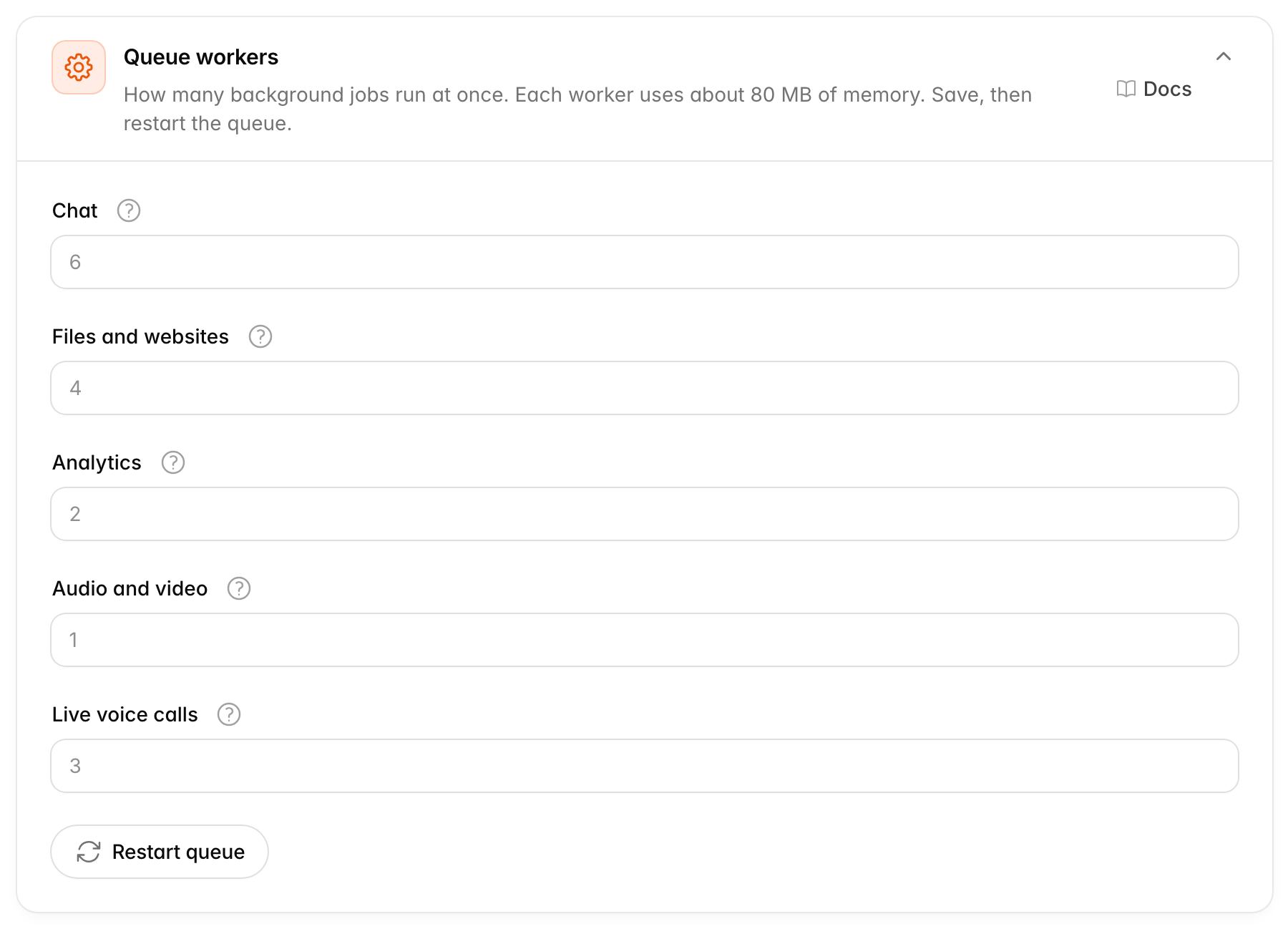
The queue workers do the slow work in the background. They are split into groups, so a big upload never holds up a chat. Each number is the most workers that group may run. Each worker uses about 80 MB of memory.
| Option | Default | Allowed | What the workers do |
|---|---|---|---|
| Chat | 6 |
2 to 200 | Replies on messaging channels, sending emails and other quick jobs. |
| Files and websites | 4 |
1 to 200 | Reading the files and websites you add as knowledge, and exports. |
| Analytics | 2 |
1 to 100 | Analyzing conversations with AI, testing agent answers and sending security events. |
| Records | 2 |
1 to 100 | Saving analytics numbers and audit logs. These jobs are quick, so they have their own group and never wait behind the AI work. |
| Audio and video | 1 |
1 to 50 | Turning recordings into text. One recording can take a long time. |
| Live voice calls | 3 |
1 to 200 | Each voice call uses one worker until it ends, so this is also the most calls at once. |
| Pictures, audio and video | 2 |
1 to 100 | Making the pictures, audio files and videos agents create in chats. Each one can take up to a few minutes, so they have their own group and never hold up replies. |
The queue reads the numbers only when it starts. So save, then click Restart queue. The running jobs finish first, and new jobs wait until then. A live voice call or a long recording can make this take several minutes.
The card header warns when something needs you:
- Restart needed: the saved numbers differ from the ones the queue runs with. Click Restart queue.
- Queue not running: no background job runs. Start the queue on the server.
The command chatvia:workers:tune also saves these numbers, sized to the memory and processors of the machine. See Size the queue workers.
When to change it: the defaults fit a small server. Raise the numbers when you have more memory and work waits too long, for example when new files take ages to train, the analytics numbers fall behind (raise Records), or the alert email from the Alerts card arrives. Lower them when the server runs out of memory. Raise Live voice calls if more people call at once than it allows. Raise Pictures, audio and video if chatters wait long for pictures or videos.
Programs
The programs on this server that read files and make PDFs. This card is under Advanced.
A program here is a separate piece of software installed on the server, like an app on a phone. Chatvia can hand some file types to these programs, for example an EPUB book or an old Word file, because they read those formats well. Most of them are optional: without them, Chatvia reads the file itself, or you lose one feature.
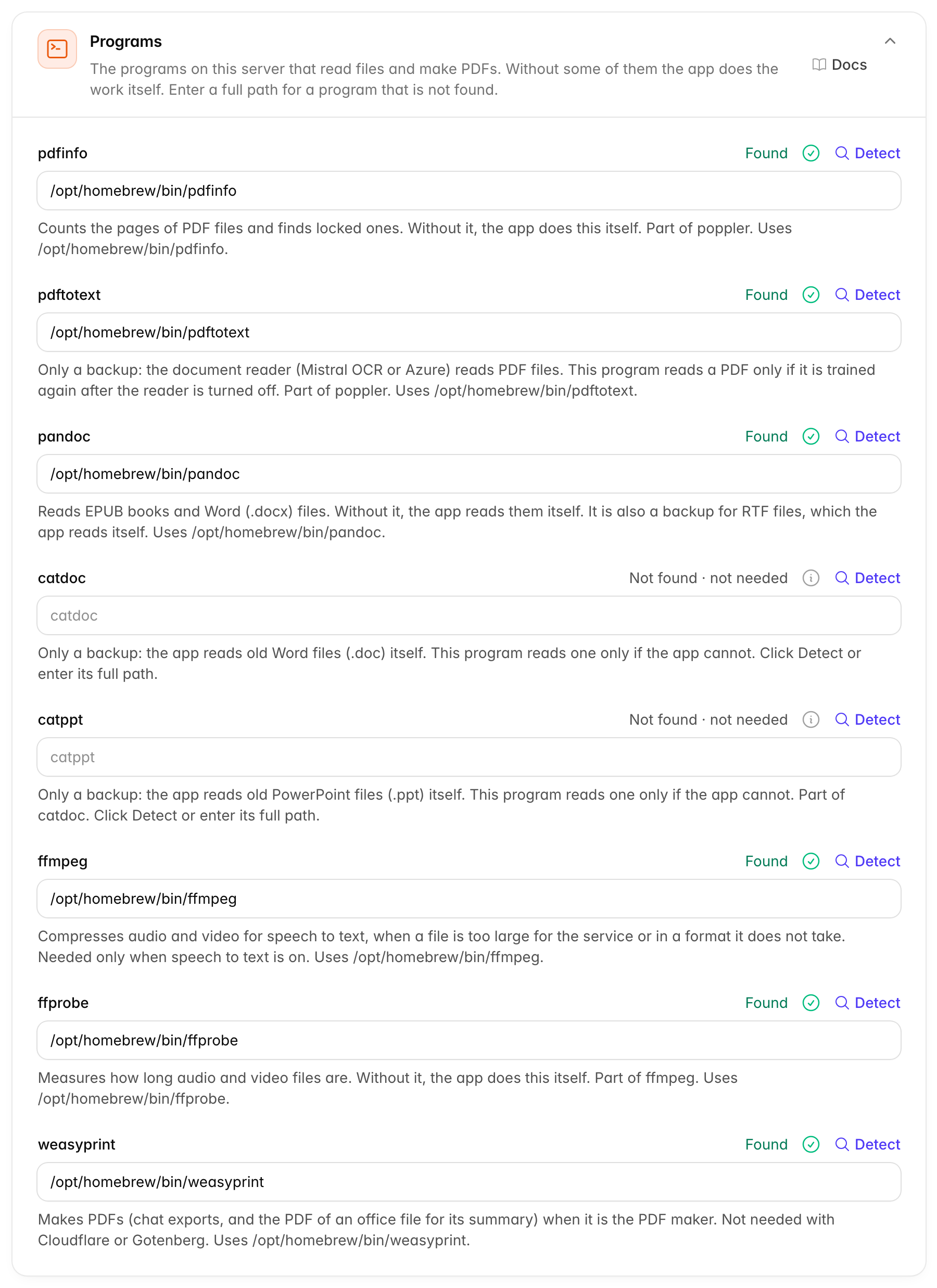
Without some of these programs, the app does the work itself. Each field shows whether the program was found: Found, Not found · not needed, or Not found. The text under the field says what the program is for and which file is used.
Leave a field blank to run the program by its name, from the server's PATH, the list of folders where the server looks for programs. When the web server or the queue cannot find it there (for example Homebrew on a Mac), enter its full path. Detect runs which for the program on the server and puts the path it finds in the field. Then save.
A field takes only the program's own name, or a full path that ends in it, such as /usr/local/bin/pandoc. The path must lead to a program on this server. This stops a stolen admin login from making the server run any other command.
| Program | What it does | Without it |
|---|---|---|
pdfinfo |
Counts the pages of PDF files and finds locked ones. Part of poppler. | The app does this itself. |
pdftotext |
A backup for reading PDF files. Part of poppler. | Nothing, while a document reader (Mistral OCR or Azure) is on. Without a reader, PDF files cannot be trained again. |
pandoc |
Reads EPUB books and Word (.docx) files. A backup for RTF files. |
The app reads them itself. |
catdoc |
A backup for old Word files (.doc). |
The app reads them itself. |
catppt |
A backup for old PowerPoint files (.ppt). Part of catdoc. |
The app reads them itself. |
ffmpeg |
Compresses audio and video for speech to text, when a file is too large or in a format the service does not take. | Only matters while speech to text is on. Then recordings over 25 MB, or in a format the service does not take, cannot be turned into text. |
ffprobe |
Measures how long audio and video files are. Part of ffmpeg. | The app does this itself. |
weasyprint |
Makes PDFs when it is the PDF maker. | Only matters while WeasyPrint is the PDF maker. Then chat PDF exports and summaries of office files fail. |
The card header warns, and names the programs, only when a program that is not found costs a feature with your current settings. The Status page shows the same.
When to change it: only when the card header warns. Then install the program it names, or enter its full path if it is installed but not found.
Custom domains
Lets agents show their Hosted Chat on a domain of their own, such as help.yourshop.com. This card is under Advanced.
An agent owner adds the domain on the agent's Deploy page, and points it to this install with a DNS record. See Custom domain.
Each domain needs its own HTTPS certificate. A browser checks that the certificate was made for exactly the address it opened, so the certificate of your own address does not count. Your web server must get a new certificate by itself the first time a domain is used. The installer's HTTPS proxy does this. See Custom domains.
When the installer set up that proxy, the card says This server gets certificates for new domains by itself.
Custom domains turns the feature on for every agent. It needs a license key: without one, the Deploy page says the feature is unavailable. It is on by default when the installer set up its HTTPS proxy, and off otherwise. Off keeps the saved domains, but they stop working, and the chats' links go back to this install's address. How to set up opens the server steps.
Set up the web server first
Turn this on only when your web server gets certificates for new domains by itself. Otherwise visitors to a new domain see a security warning.
CNAME target is the address agent owners point their domain at. The Deploy page shows it in the DNS record. It is empty by default, and empty means this install's own address. Fill it in when your own address runs behind a CDN such as Cloudflare with the proxy on (the orange cloud). A CDN only answers for its own customers' names, so a customer's domain cannot point at that address. Give a second address instead, such as domains.example.com, that points straight at this server, with ports 80 and 443 open to everyone. Type the name only, without https://.
When to change it: when agent owners want their chats at their own domains, after the web server is ready. Set the CNAME target only when your address runs behind a CDN.
Development
Tools for finding problems in this install. This card is under Advanced.
A log is a diary the app keeps on the server. Each line says what happened and when, such as an error while reading a file. When something goes wrong, the log often says why. This card can show those log files inside the admin panel, so you do not need to sign in to the server to read them.

Logs page shows Logs at the bottom of the admin panel's sidebar, below License. There admins read and clear the log files of this install. It is off by default. Off hides the page and blocks its address.
Logs hold workspace details
The log files can hold details about every workspace, so turn the page on only while you need it.
When to change it: turn it on while you, or a developer helping you, look into a problem. Turn it off again when you are done.
Related
- Widget settings: the Chat Widget options, which used to be on this page.
- Behind the scenes: what each group of queue workers does.
- Status: whether the queue runs and which programs are found.
- Installation: the programs to install for some file types.