Slack

Connect a Slack app to your agent. Your team can then ask the agent questions in Slack: in a direct message, or by @mentioning it in a channel. The answer streams in live, the way it does on your website.
For example, a support team trains an agent on its internal help center and connects it to Slack. A new teammate writes in #support-help: "@HelpBot how do I issue a refund?". The agent answers in the channel a few seconds later.
You create the Slack app yourself, in your own Slack workspace. Nobody needs to touch the Chatvia admin panel. Plan about 10 minutes. You need permission to install apps in your Slack workspace.
Public agents only
Like every channel, Slack works for public agents only. If the panel says Public agents only, see the agent must be public.
Step 1: Create a Slack app
A Slack app is how outside software joins your Slack workspace. It shows up in Slack like a teammate, with its own name and picture.
- Go to api.slack.com/apps and click Create New App.
- Pick From scratch. Give the app a name (this is the name people @mention, for example "HelpBot") and pick your Slack workspace.
Step 2: Give it permissions and install it
- In your app's settings, open OAuth & Permissions.
- Under Bot Token Scopes, add these three scopes. A scope is one permission, like "can post messages".
app_mentions:read: see messages that @mention the app.chat:write: post and update its answers.im:history: read direct messages sent to the app.
- Optional: also add
channels:read. With it, conversations in the Chatlog are titled with the Slack channel's name, for example "Slack · #support-help". Without it, the title is just "Slack". - Scroll up and click Install to Workspace, then Allow.
- Copy the Bot User OAuth Token. It starts with
xoxb-.
Step 3: Copy the signing secret
Open Basic Information. Under App Credentials, click Show next to Signing Secret and copy it.
Slack signs every message it sends to Chatvia with this secret. Chatvia checks the signature, so nobody else can pretend to be Slack.
Step 4: Connect it in Chatvia
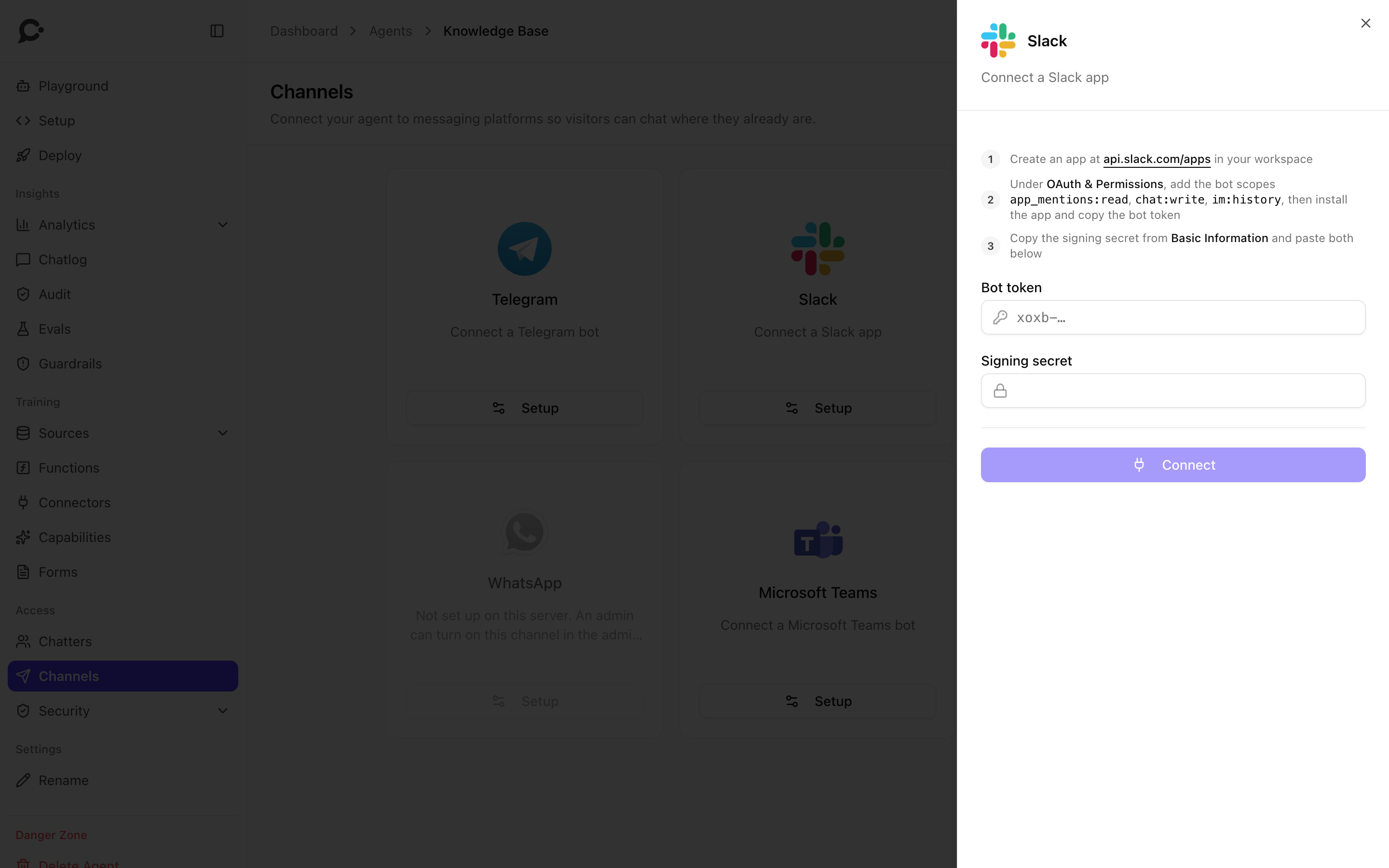
- Open your agent and click Channels in the left menu.
- Click Setup on the Slack card.
- Paste the token into Bot token and the secret into Signing secret.
- Click Connect.
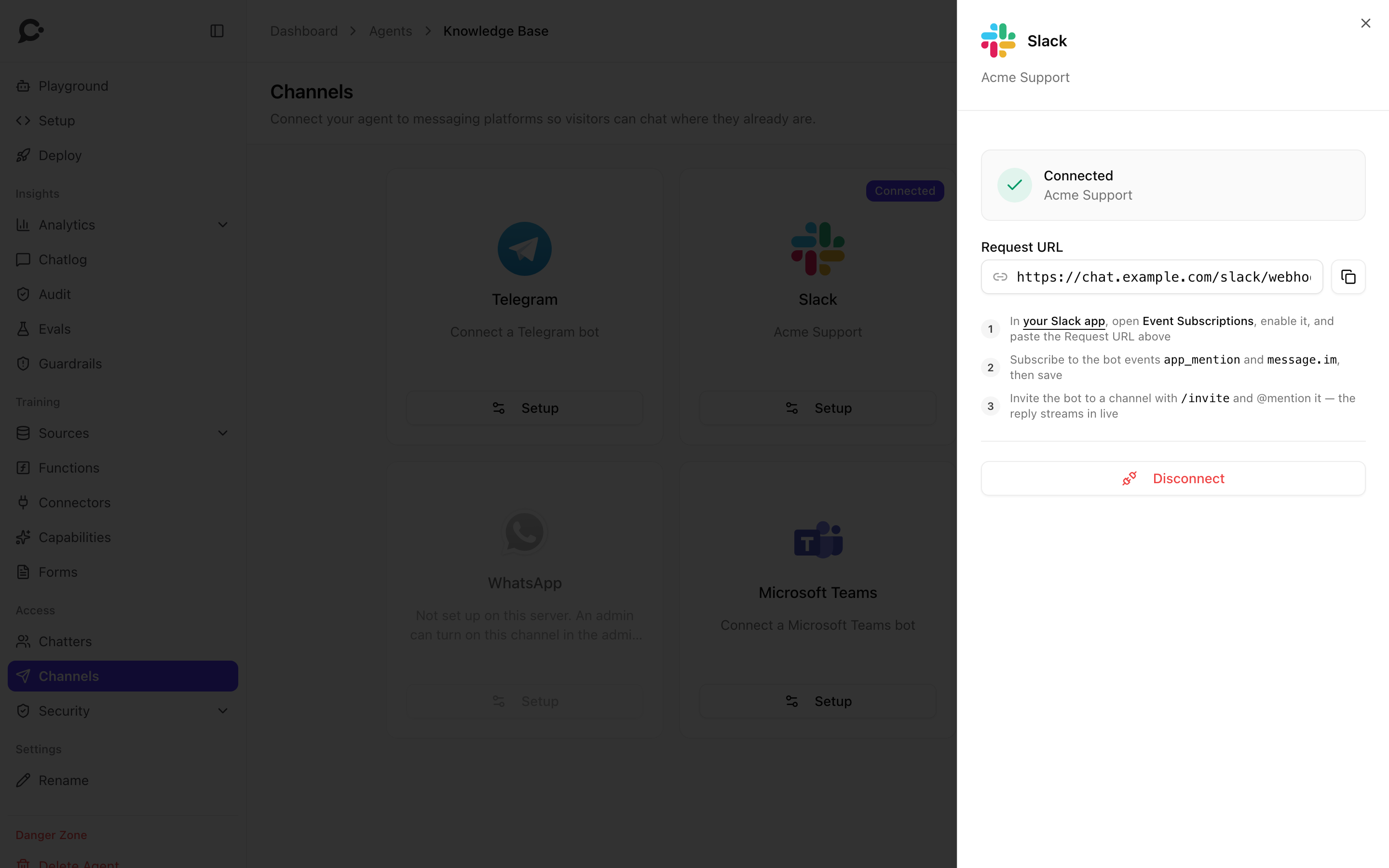
Chatvia checks the token with Slack. The panel then shows Connected with your Slack workspace's name, and a Request URL.
Step 5: Send events to Chatvia
Slack now needs to know where to send messages. That address is the Request URL.
- On the Chatvia panel, click the copy button next to Request URL.
- In your Slack app's settings, open Event Subscriptions and turn Enable Events on.
- Paste the address into Request URL. Slack checks it at once and shows Verified.
- Open Subscribe to bot events and add
app_mentionandmessage.im. - Click Save Changes. If Slack shows a banner asking you to reinstall the app, do it.
Step 6: Allow direct messages
To let people message the app directly:
- In your Slack app's settings, open App Home.
- Under Show Tabs, turn on Messages Tab and tick Allow users to send Slash commands and messages from the messages tab.
Step 7: Test it
- Direct message: find the app in Slack under Apps, open it and ask a question. Every message in a direct message gets an answer.
- Channel: in a channel, type
/invite @HelpBot(your app's name). Then write a message that @mentions it. In a channel, the app only answers messages that mention it.
The app posts "Thinking…" right away and rewrites it with the answer as it grows. The conversation appears in your agent's Chatlog with a Slack badge.
How it behaves
- Threads. If you mention the app inside a thread, it answers in that thread. If you mention it in the main channel, it answers in the main channel.
- Memory. Each Slack channel has one ongoing conversation with the agent, shared by everyone in it. Each direct message has its own. The agent remembers earlier messages in the same channel or direct message.
- Rate limits. The per-visitor limit on Security → Rate Limiting counts a whole Slack channel as one visitor.
- Formatting. Bold, italic, strikethrough, code, quotes and links show natively. Lists become bullet or numbered lines. Headings become bold lines.
- Text only. Files and images are not read. Edited messages and messages from other bots are ignored.
Good to know
- Reconnecting changes the Request URL. If you disconnect and connect again, Chatvia makes a new Request URL. Paste the new one into Event Subscriptions, or the app stops answering.
- One Slack app per agent. A Slack app sends its events to one Request URL. For a second agent, create a second Slack app.
- Disconnect stops Chatvia from answering. The app stays in your Slack workspace. Remove it there if you no longer need it.
Troubleshooting
| Problem | Likely cause |
|---|---|
| "That doesn't look like a Slack bot token" | You copied a different token. Use the Bot User OAuth Token, which starts with xoxb-. |
| "That doesn't look like a Slack signing secret" | You copied the wrong value. Use Signing Secret under Basic Information, not the client secret or verification token. |
| "Slack rejected that token" | The token is wrong, or the app was uninstalled. Reinstall it and copy the token again. |
| Slack can't verify the Request URL | The signing secret in Chatvia doesn't match, or the URL was not copied fully. Disconnect, connect with the right secret, and paste the new Request URL. |
| No answer in a channel | The app is not in the channel (/invite it), or the message did not @mention it, or app_mention is not subscribed. |
| No answer in direct messages | message.im is not subscribed, or the Messages Tab is off in App Home. |
| Stopped answering after reconnecting | The Request URL changed. Paste the new one into Event Subscriptions. |
| "This assistant isn't available on Slack right now." | The agent was made protected after connecting. Make it public again on Security → Identity. |