Agent security

The Security menu in an agent's sidebar decides who may chat with the agent, how fast, and who is shut out. It has three pages:
- Identity: whether anyone can chat, or only people you sign in.
- Rate Limiting: how many messages the agent answers per minute.
- Blocked: visitors and chatters who cannot chat with the agent.
For example, a shop's public help agent stays public, with a rate limit so a script cannot run up costs overnight. An internal HR assistant stays protected, so only staff your system signs in can use it.
The badge in the top right corner of every agent page shows the current state at a glance: a red eye when the agent is public, a green lock when it is protected.
Identity
Identity holds the Access control card with one switch: Make agent public.
- Off (protected, the default for new agents): only signed-in chatters can use the agent, on the Hosted Chat, the Chat Widget and the Command Bar. Your own system signs them in with a short-lived token.
- On (public): anyone with the link or the embed code can chat without signing in.
Turning the switch on asks you to confirm with Make public, because it opens the agent to everyone. Turning it off applies at once.
While the agent is protected, the page also shows the Signing secret and examples of how to sign in chatters. That is explained step by step in Identity verification and Protected agents.
Public or protected?
Pick public for anything on your website that strangers should use: support, sales, FAQs. Pick protected when the agent should only talk to your customers or staff, for example inside a customer portal, and use the Chatters page to decide who.
Rate limiting
A rate limit caps how many messages the agent answers in a minute. It protects you from abuse and from surprise costs, for example when someone points a script at your widget.
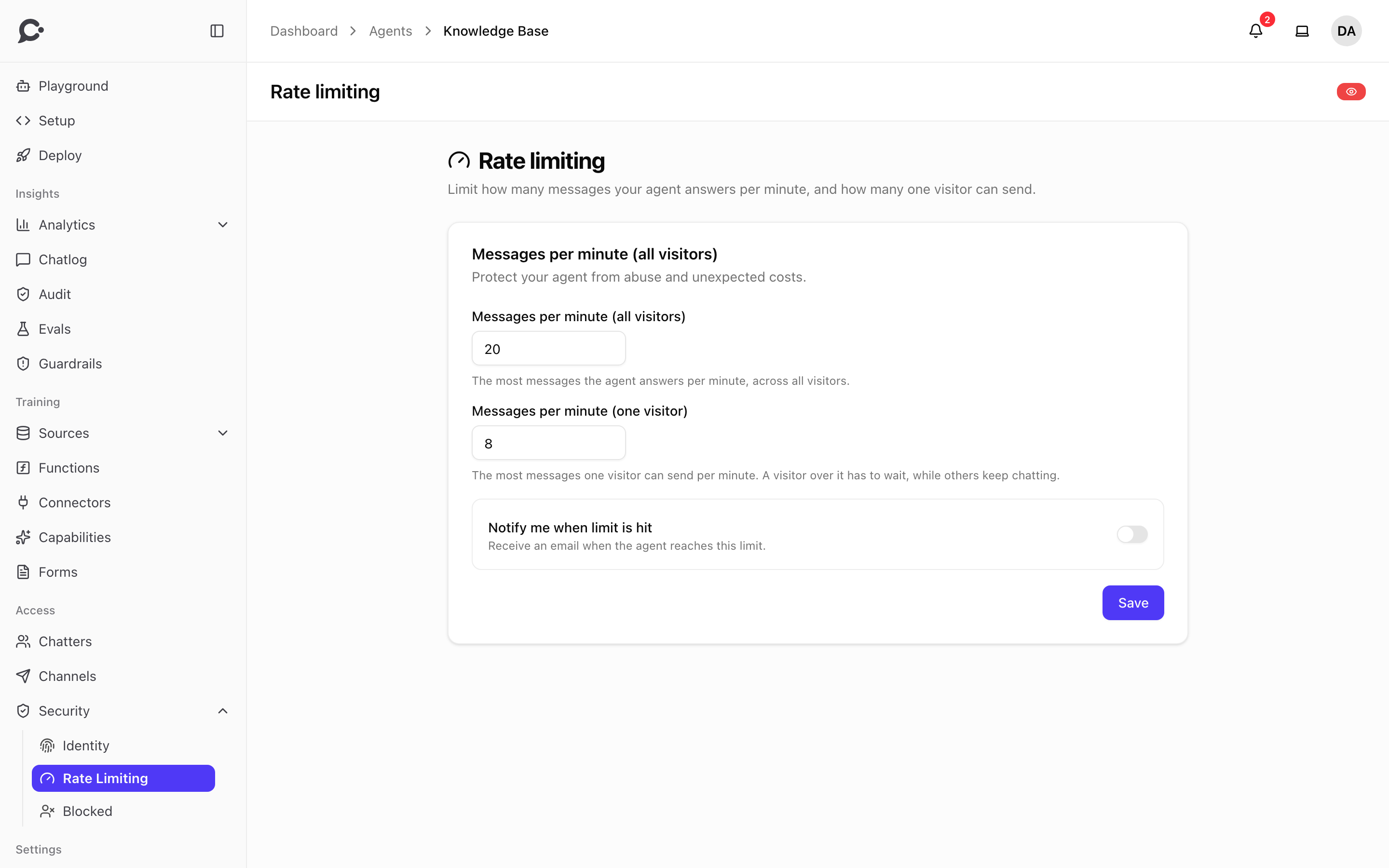
| Setting | Default | What it does |
|---|---|---|
| Messages per minute (all visitors) | 20 | The most messages the agent answers per minute, counting every visitor together. |
| Messages per minute (one visitor) | 8 | The most messages one visitor can send per minute. A visitor over it has to wait, while others keep chatting. |
| Notify me when limit is hit | Off | Sends an email when the agent reaches the limit for all visitors. |
Both numbers can be from 1 to 1000. Click Save to apply them. The change works right away.
How it works:
- The count starts with the first message and resets 60 seconds later.
- The limits apply everywhere the agent answers: the Hosted Chat, the Chat Widget, the Command Bar and messaging apps like WhatsApp or Slack.
- A chatter over a limit sees a short request to wait a moment, and the AI model is not called. See How an agent answers.
- The one-visitor limit is checked first. A visitor who floods the chat is stopped without using up the agent's limit for everyone else.
- With Notify me when limit is hit on, the workspace owner gets at most one email per hour for this agent. Teammates who manage the agent's security also get a notification in the dashboard, at most one every ten minutes.
Pick a number that fits your traffic
Look at Analytics → Chats for your busiest hour. If your agent answers 300 messages in its busiest hour, that is about 5 a minute, so the default of 20 leaves plenty of room. Raise it before a launch or a campaign.
Blocked
Blocked lists who cannot chat with this agent. You do not block people on this page. You block them from the Guardrails activity, where you can see what they did. The same list is on the Blocked tab of the Guardrails page.
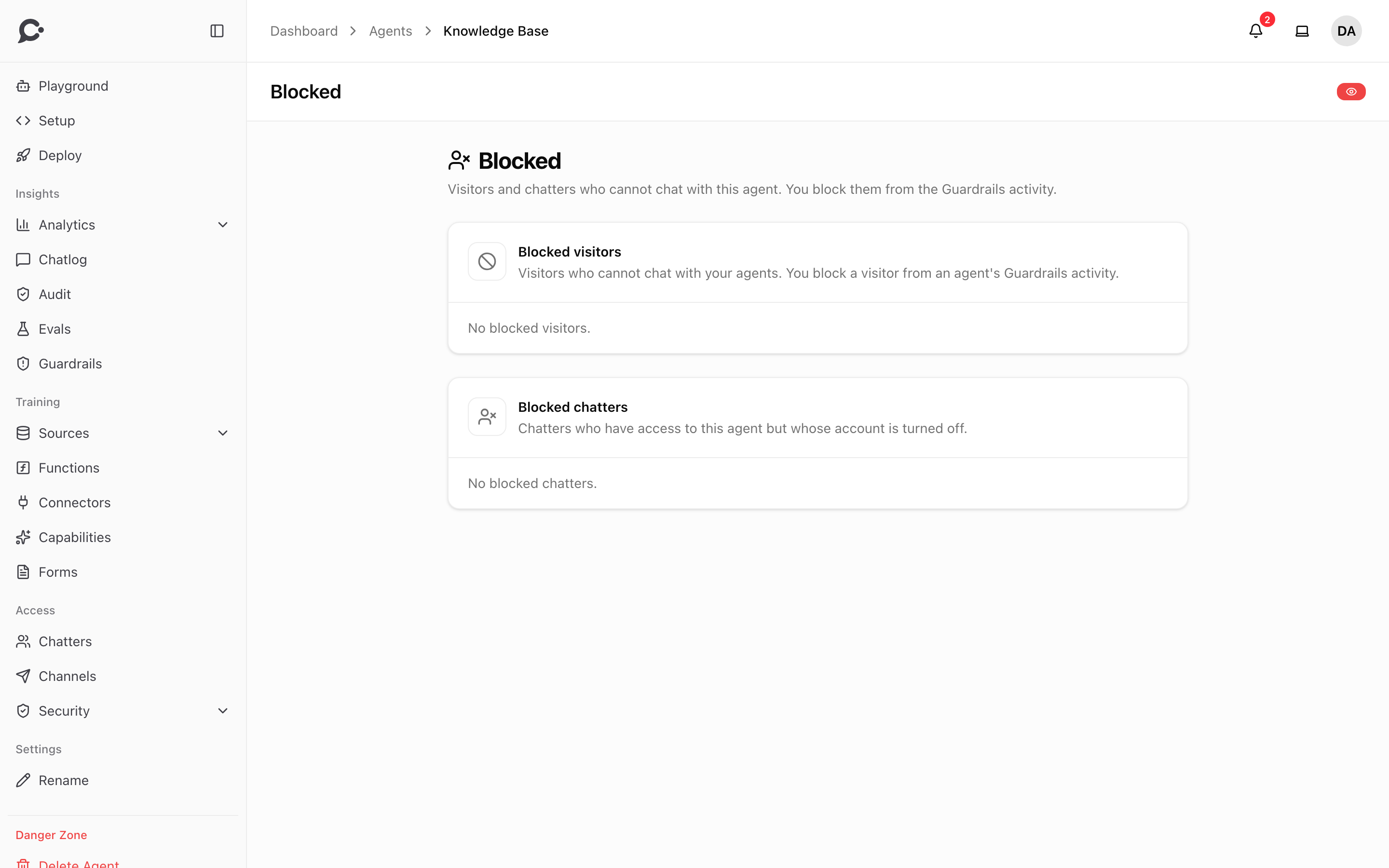
The page has two lists:
- Blocked visitors: anonymous visitors who are blocked. A visitor block covers every agent in your workspace, so this list shows the whole workspace's blocks. Each one shows the visitor's ID, their browser, the agent they were blocked on, who blocked them, and until when. Click Unblock to let them chat again. Unblocking needs the Security permission.
- Blocked chatters: chatters who have access to this agent but whose account is turned off. You turn them back on under People. Click Manage in People to go there.
Permissions
Identity and Rate Limiting need the Agent Identity Verification permission. Blocked needs View guardrails. Turning Make agent public on or off needs Setup agent. See Teams & roles.