Creating an agent

Go to Agents in the top nav and click Create agent.
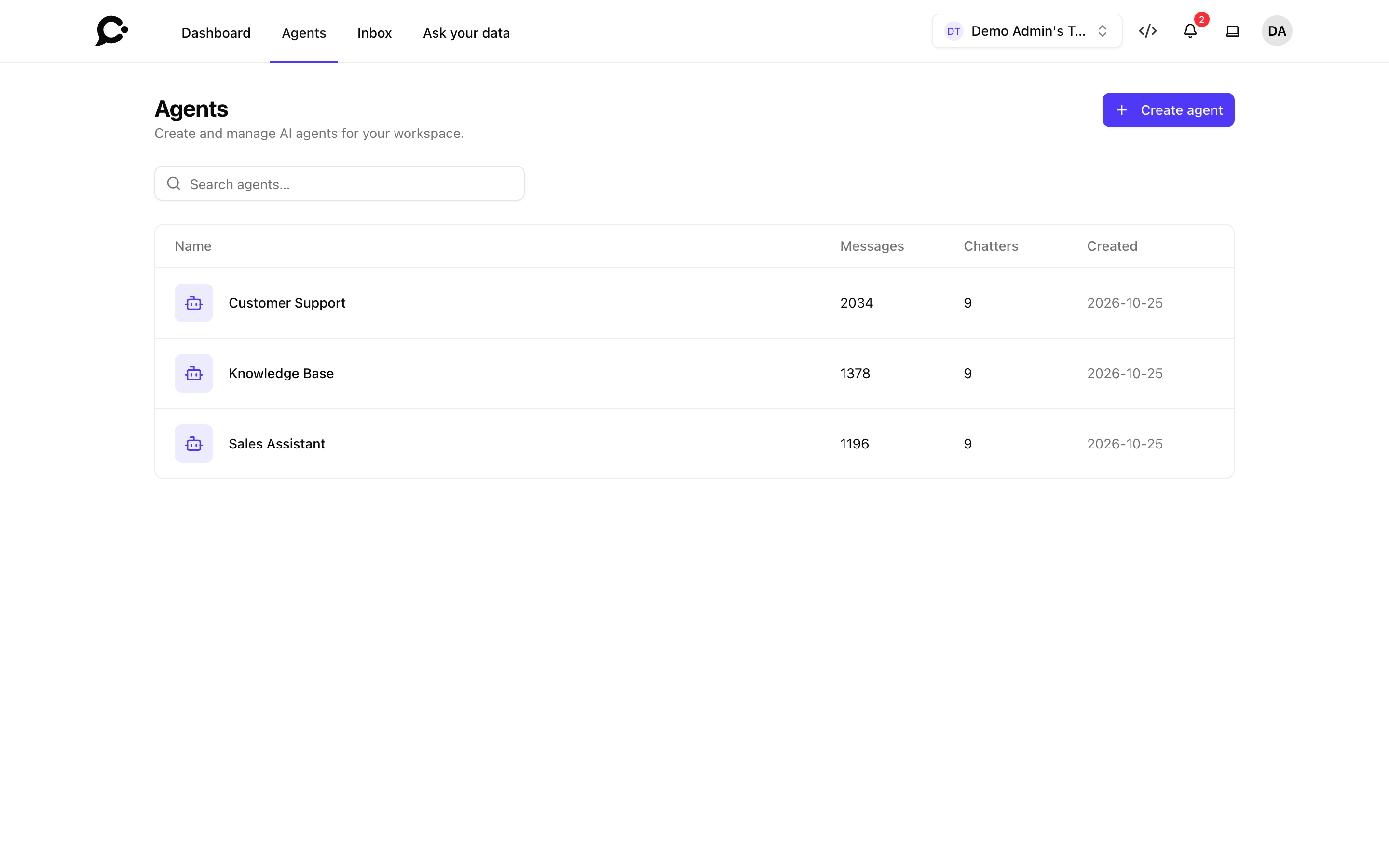
The create dialog
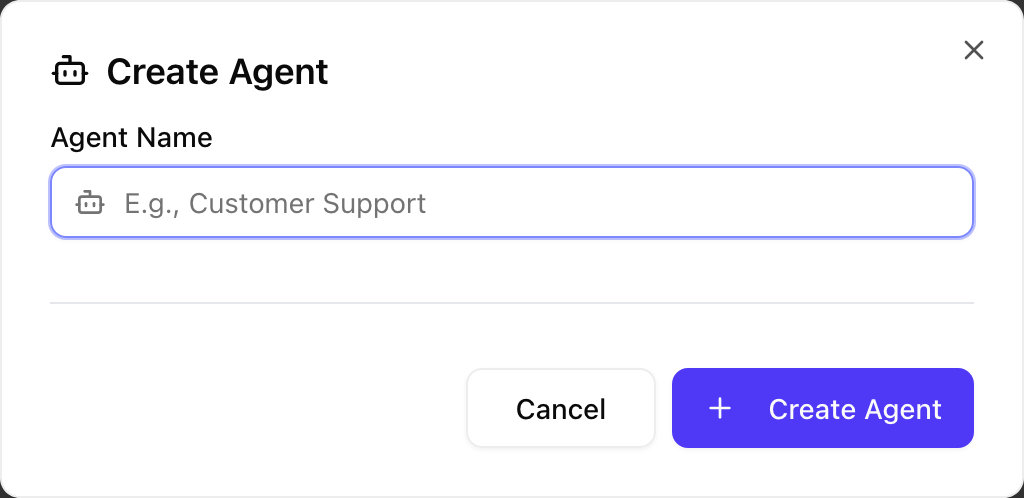
You'll be asked for one thing:
| Field | Notes |
|---|---|
| Agent Name | Shown in the dashboard. Chatters see the Chat Window Title from Setup → Info in the chat header. |
Renaming and chat address
A chat address is generated for you, so there is no need to pick one in the dialog. Change the name or the address later with Settings → Rename in the agent's sidebar (owners only).
What happens after creation
You land on the agent's Setup page. From there, your team usually visits:
- Sources: add files, web pages, text, or Q&A so the agent has something to answer from.
- Setup → Persona: set the system instructions, tone, and behaviour.
- Setup: configure the three surfaces (Hosted Chat, Widget, Bar), appearance, model, and branding. See The Setup page.
- Playground: try the agent out before sharing it with chatters.
Behind the scenes:
- An empty agent is created in the current workspace.
- No model is picked yet. The agent answers with the server's default model for new agents, which the admin sets in Settings → AI models. Pick another in Setup → Model.
- No instructions of its own yet. The agent uses Chatvia's built-in default instructions until you save a persona. Change them before sharing.
- No sources yet. The agent has nothing to answer from until your team adds at least one.
- The agent is protected: only signed-in chatters can use it. Make it public on its Security → Identity page. See Identity verification.
Renaming an agent
Owners find Rename in the agent's sidebar, under Settings. The dialog has two fields:
- Agent name: the name your team sees in the dashboard.
- Chat address: the last part of the Hosted Chat link. Only lowercase letters, numbers and hyphens are allowed.
Click Save. Links that use the old chat address stop working, so update any you shared. Embed codes use the agent ID and keep working. See Name and chat address.
Deleting an agent
Deleting an agent removes it and everything attached to it: conversations, sources, settings and channels. It cannot be undone.
- In the agent's sidebar, under Danger Zone, click Delete Agent.
- Type the agent's name to confirm.
- Click Delete Agent.
The sidebar shows this button to team owners only.
Permissions
Only team owners can create agents. Other teammates can be given access to specific agents, and to specific actions on them, through roles.
Creating agents via API
Agents can also be created programmatically. See the API reference at yoursite.com/docs/api, under Agents, for the full request schema.
INFO
Every new agent serves all three surfaces (Hosted Chat, Widget, Bar). See Agent surfaces.