Messaging channels

A channel is a messaging app your agent can answer in. Your customers already use WhatsApp, Instagram or Messenger every day. Your team already lives in Slack or Microsoft Teams. With a channel, your agent answers there too, not only in the chat on your website.
For example, a coffee shop connects its Instagram account. A customer sends the shop a DM: "Do you have oat milk?". The agent reads the question, looks in the shop's knowledge, and answers in Instagram a few seconds later. Nobody on the team had to open Instagram.
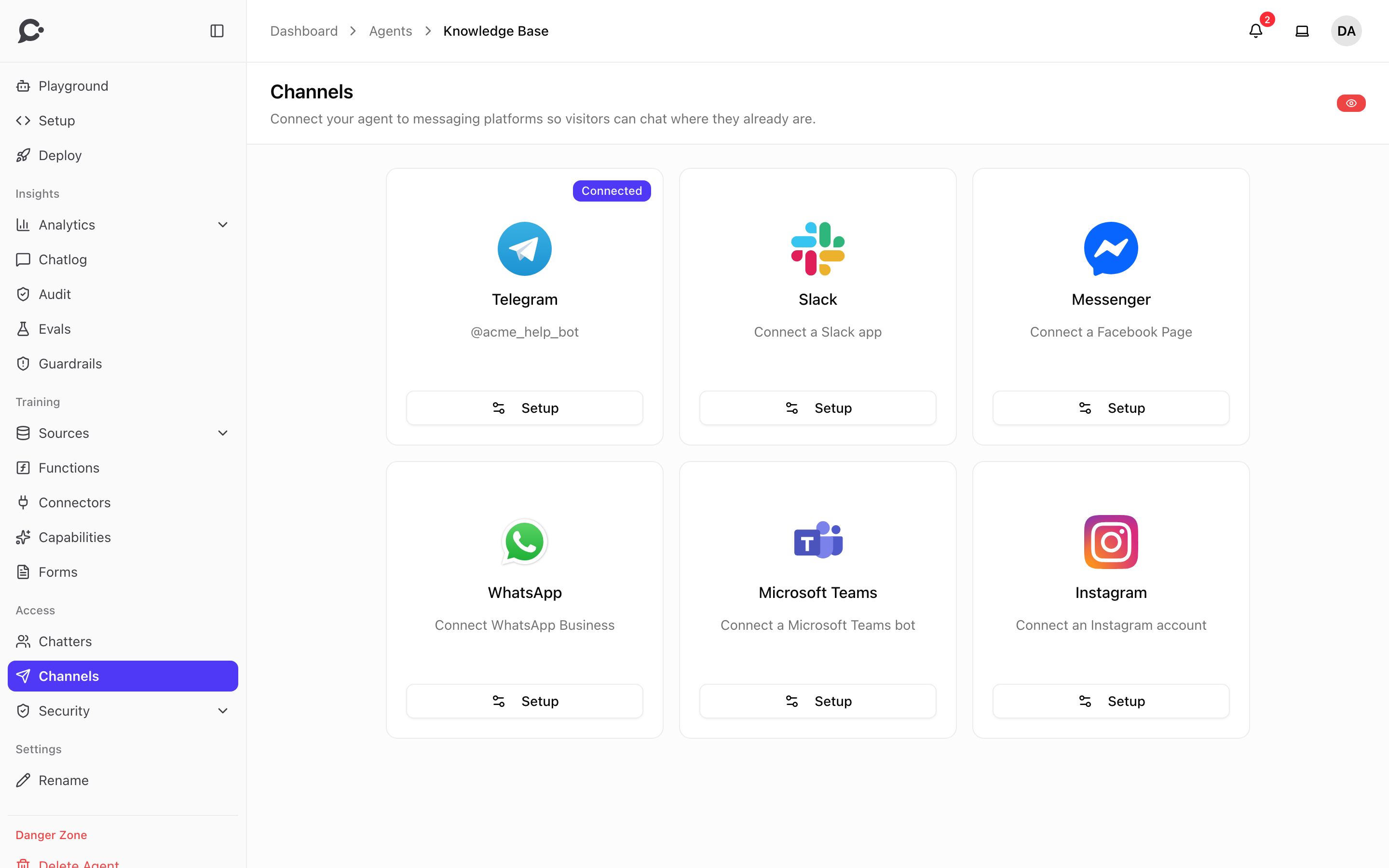
Which channels exist
| Channel | What you connect | Who sets it up |
|---|---|---|
| Telegram | A Telegram bot | You, on the agent's Channels page. Takes about 2 minutes. |
| Slack | A Slack app in your Slack workspace | You, on the agent's Channels page, plus a few steps in Slack. |
| Microsoft Teams | An Azure bot | You, on the agent's Channels page, plus a few steps in Azure. |
| Messenger | A Facebook Page | The server admin once, then you with a Connect with Facebook button. |
| An Instagram professional account | The server admin once, then you with a Connect with Facebook button. | |
| A WhatsApp Business phone number | The server admin once, then you with a Connect with Facebook button. |
Messenger, Instagram and WhatsApp belong to Meta. They need a "Meta app" that the person who runs your Chatvia server enters once in the admin panel (see Channels settings). Until then, their cards are greyed out and say "Not set up on this server". Telegram, Slack and Microsoft Teams need nothing from the admin.
The chat on your own website (the widget, the full-page chat) is set up elsewhere. See Widget and Full-page embed.
Open the Channels page
- Open your agent.
- In the left menu, under Access, click Channels.
- Click Setup on the card of the app you want. A panel slides in from the right with the steps for that app.
A card with a Connected badge is already live. Its card shows the connected bot, team, Page, number or account.
To see the page you need the Manage channels permission on the agent (see Roles).
Before you start: the agent must be public
Every channel works for public agents only. A person who writes to your bot on Telegram or WhatsApp is not signed in to Chatvia, so Chatvia cannot check who they are. A protected agent (one that only talks to signed-in people) therefore cannot answer there.
If your agent is protected, the panel shows Public agents only instead of the setup steps.
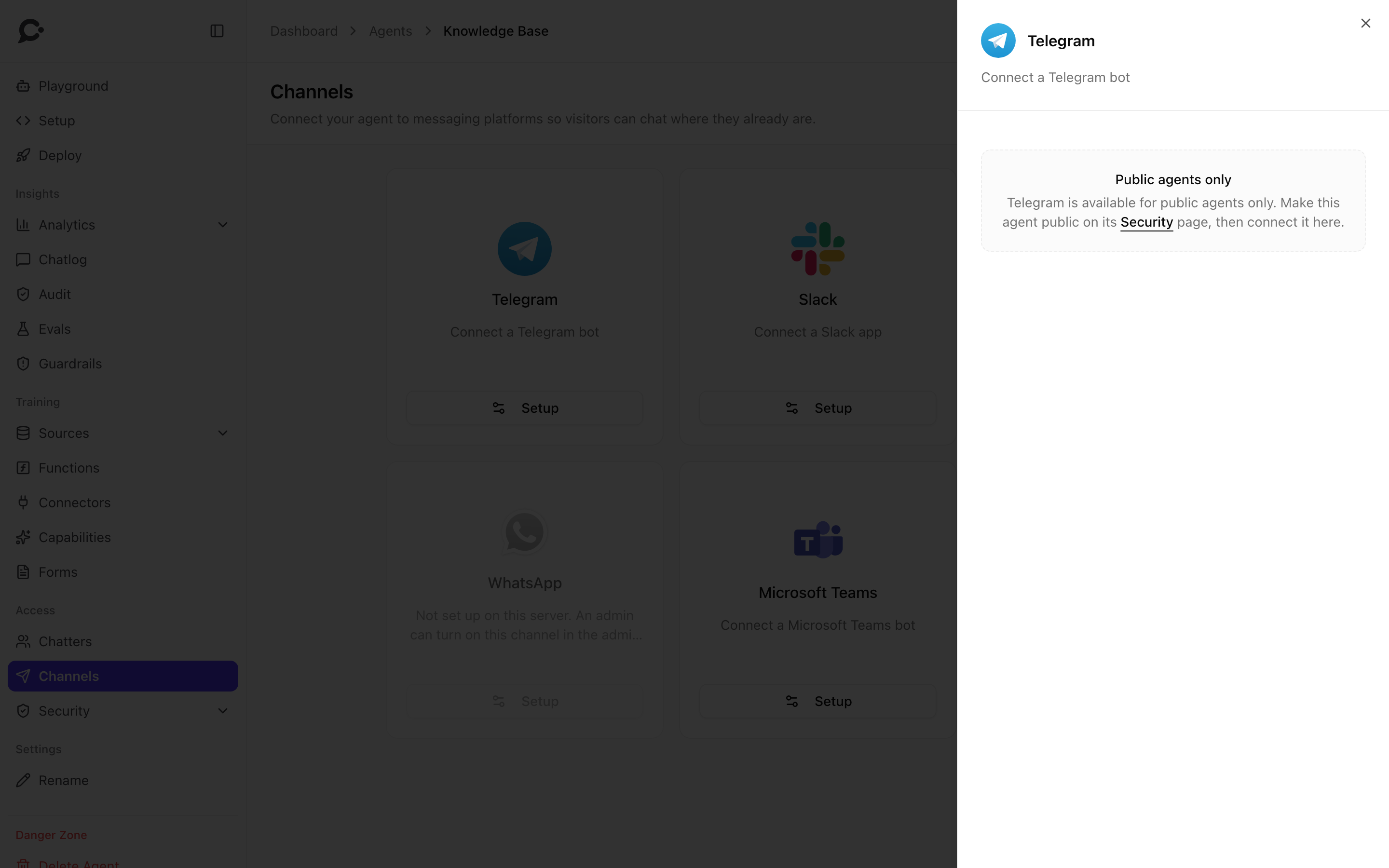
To make the agent public:
- In the left menu, open Security → Identity.
- Under Access control, turn on Make agent public and confirm with Make public.
- Go back to Channels and connect.
If you make an agent protected again after you connected a channel, the channel stays connected but the agent stops answering there. People get a short note that the assistant isn't available on that channel. The panel also shows a yellow warning. Learn more in Protected agents.
What is the same on every channel
The same agent, the same answers
A channel is only a new door to the same agent. It uses the same knowledge, Q&A pairs, persona, model, tools and guardrails as your website chat. You don't train it again.
One ongoing conversation per chat
Chatvia keeps one conversation for each chat on the channel, so the agent remembers what was said before:
- Telegram, WhatsApp, Messenger, Instagram: one conversation per person.
- Slack: one conversation per Slack channel or direct message. Everyone in a Slack channel shares it.
- Microsoft Teams: one conversation per personal chat, group chat or Teams channel.
On Telegram, a person can send /reset to start a fresh conversation. The old one stays in your Chatlog.
Conversations appear in your Chatlog
Every channel conversation shows up in the agent's Chatlog, with the channel's badge. To see one channel only, use the Source filter (see Chat logs). Channel conversations also count in Analytics.
Limits apply the same way
- Message limits. Channel replies count toward your workspace's monthly limit, like website chats. When the limit is reached, people get "Sorry, this assistant is unavailable right now. Please try again later." See Message limits.
- Rate limits. The agent's limits on Security → Rate Limiting apply too. On a channel, "one visitor" means one chat. In a Slack channel, that is everyone in the channel together.
Text only
Agents read and send text. Photos, voice notes, stickers, files, reactions and edited messages are ignored, and the agent does not reply to them. If a customer sends only a photo, nothing happens.
Some things that work on your website don't work in a messaging app:
- Forms. The agent cannot show a form on a channel. It keeps helping in plain conversation instead.
- Tools that need approval. A tool that asks a person to click Approve first is not offered to the agent on a channel. The agent says it can't do that here.
No live takeover
Human handoff (a teammate taking over the chat) works in the Chat Widget only. You can read channel conversations in the Chatlog, but you cannot join them from Chatvia. If you need to answer yourself, reply in the app itself (for example in your Instagram inbox or in Slack).
How the reply arrives
There are two styles, depending on what the app allows:
- Typing, then the full answer. Telegram, WhatsApp, Messenger and Instagram show "typing…" while the agent thinks, then the whole answer arrives at once. These apps don't let a bot edit a sent message.
- Live streaming. Slack and Microsoft Teams post a "Thinking…" message right away, then rewrite it as the answer grows, like on your website.
If your agent's guardrails check answers Before showing them, Slack and Teams also wait and show the full answer at once. This way nobody sees text the check would remove.
Formatting and length
The agent writes with Markdown, a simple way to mark bold text, lists and links. Each app supports a different amount of it, so Chatvia converts the answer for each one:
| Channel | Formatting | Longest single message |
|---|---|---|
| Telegram | Bold, italic, strikethrough, code, quotes and links. Lists become bullet lines. | 4,096 characters. A longer answer is split into several messages and sent without formatting. |
| Slack | Bold, italic, strikethrough, code, quotes and links. Lists become bullet lines. | 40,000 characters. Longer text is cut off. |
| Microsoft Teams | Bold, italic, lists, links and code. Headings become bold lines. | Very long answers are cut off. |
| Bold, italic, lists and quotes. Links are sent as text with the address after it. | 4,096 characters. Longer answers are split into several messages. | |
| Messenger | Plain text. Lists keep their bullets and numbers. Links are sent as text with the address after it. | 2,000 characters. Longer answers are split. |
| Plain text, like Messenger. | 1,000 characters. Longer answers are split. |
Headings show as bold lines or plain lines. Tables have no equivalent in any of these apps.
Language of the fixed messages
Some short messages are fixed, not written by the AI: "Thinking…", "unavailable right now", Telegram's built-in command replies. A message app doesn't tell Chatvia the person's language, so these use the language you picked for the agent's Hosted Chat. If that is on automatic, Chatvia uses the Chat Widget's language, and then the install's default language.
Other notices people may see
| Message | Why |
|---|---|
| "This assistant isn't available on {channel} right now." | The agent is protected. Make it public. |
| "Sorry, this assistant is unavailable right now. Please try again later." | The workspace is deactivated, or its monthly message limit is reached. |
| "Sorry, this assistant is not fully configured yet." | No AI model can answer for this agent. See Models. |
| "You are sending messages too quickly…" or "This assistant is receiving too many messages right now…" | A rate limit on Security → Rate Limiting was reached. |
| "Sorry, something went wrong. Please try again." | The answer failed, for example because the AI provider had an error. |
One account, one agent
- Each agent can have one connection per channel: one Telegram bot, one Slack app, one Page, and so on. To switch to a different one, disconnect the current one first, then connect the new one.
- A Facebook Page, Instagram account or WhatsApp number can power one agent at a time. To move it, disconnect it from the first agent.
- Use a separate Telegram bot and a separate Slack app for each agent. Telegram and Slack send messages to only one address per bot or app.
Disconnect a channel
- Open the channel's panel and click Disconnect.
- Confirm with Disconnect.
The agent stops answering on that app right away. Conversations so far stay in your Chatlog. You can connect again any time. After you reconnect, each person starts a new conversation.
Related
- Channels settings, for the server admin
- Protected agents
- Chat logs