Admin panel

The admin panel is where you look after your whole Chatvia install. Think of the install as a building and the workspaces as the offices in it. Each workspace builds its own agents (the AI assistants that answer your visitors) in the dashboard. The admin panel is the building's back office: it connects the AI services every agent relies on, holds the settings that apply to everyone, shows whether everything is running, and lists every workspace.
It is for the person who runs Chatvia, often whoever installed it. If you only build agents, you rarely need it. Most settings start on defaults that suit most installs, so after the setup you may never change them.
New to the words used here? Words to know explains terms like API key, embedding and webhook in plain words.
Opening the admin panel
Open /admin on your install's address, for example
https://chat.example.com/admin, and sign in with an admin account.
Only admin accounts can sign in. The first one is made when you install Chatvia. To add another, someone with access to the server runs this command there:
php artisan chatvia:admin:create-user [email protected] "Sam"The command asks for the password, so it does not end up in the server's
list of past commands. With the Docker install, use
./manage admin [email protected] instead (see
Manage your install).
Every admin also gets a workspace of their own, so they can build agents in
the dashboard too. An admin whose account is deactivated cannot sign in.
The admin panel has its own sign-in. Signing in to the dashboard at
/login does not sign you in here, even with the same account.
Turn on two-factor authentication
Two-factor authentication asks for a second proof besides your password: a short code from an app on your phone, which makes a new one every few moments. Someone who steals your password still can't get in. To turn it on, open the menu with your name at the bottom of the sidebar, choose your profile, and set up an authenticator app. From then on the admin panel asks for a code when you sign in.
The setup wizard
On a new install, the admin panel first opens the setup wizard. It walks you through the basics in a few steps. It checks the server, then asks for an AI provider (the company whose AI writes the replies), the models, and the optional services. Every page leads back to it until you finish it or skip it. If you skip it, a Finish the setup button stays at the top of the Settings overview. See Setup wizard.
The sidebar
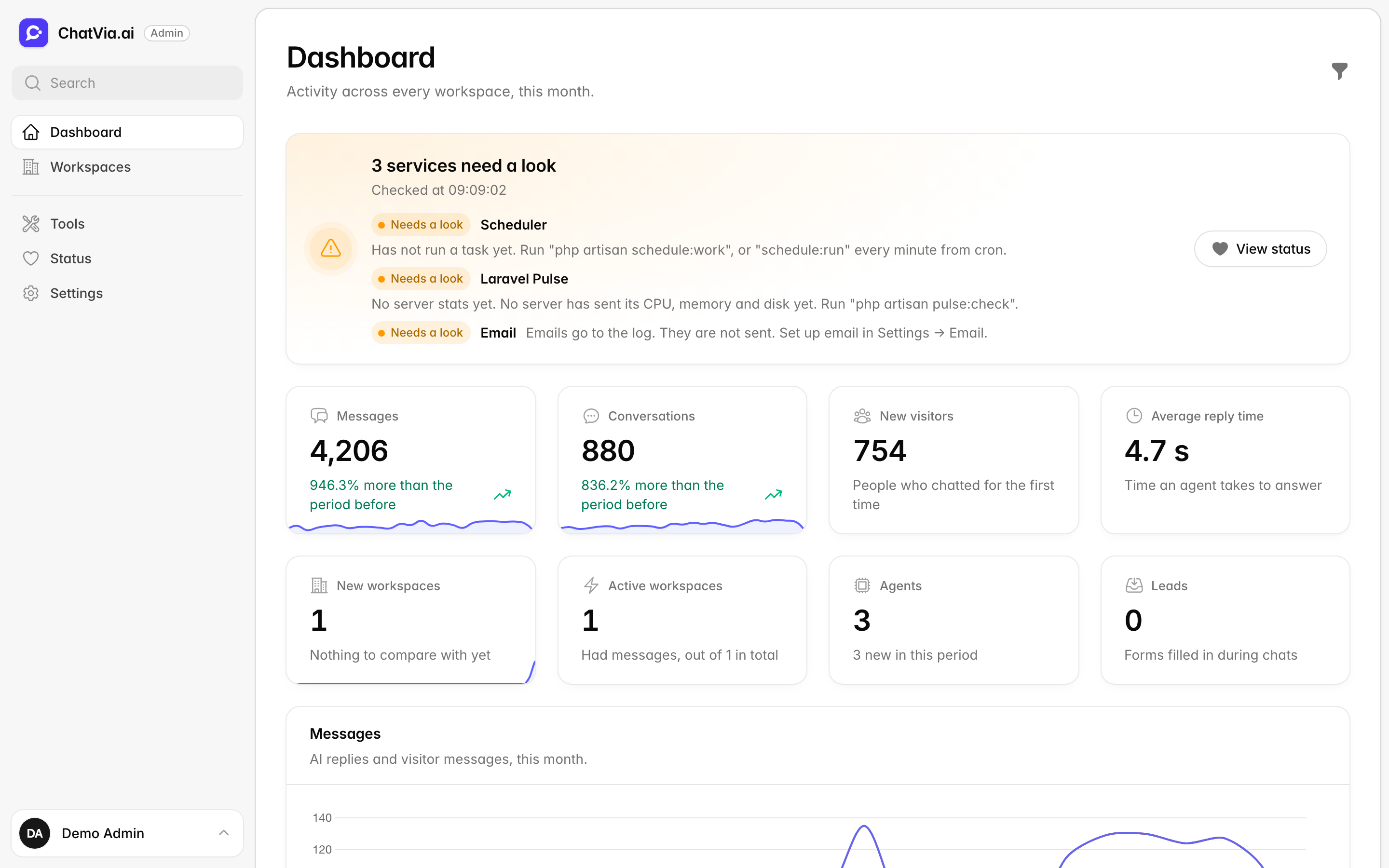
The search box at the top of the sidebar finds workspaces by name, and the Settings sections and options that match what you type.
Dashboard
The home page. It shows the activity across every workspace: messages, conversations, channels, sign-ups and the busiest workspaces and agents. The filter button picks the period, or one workspace. A banner at the top warns when a service the install needs is down. See Dashboard.
Workspaces
Every workspace on the install, with its owner. Open one to see its numbers, its agents and its people. From there you can edit it, reset a password, set its message limit, deactivate it or delete it. See Workspaces.
Tools
Links to the tools that watch the install from outside the admin panel. Each tool opens in a new tab. See Tools.
- Laravel Horizon shows the background jobs and the queue workers. Slow jobs, such as reading a big PDF, wait in a line (the queue) until a background program (a worker) picks them up. See queue and worker.
- Laravel Pulse shows how the app performs, such as slow pages and errors.
- Spectra lists every call to an AI service, with its tokens and cost. Tokens are the small pieces of text AI services count and charge by. See token.
Status
Checks, live, whether the install is up and running: the services it needs (database, Redis, queue, scheduler, live updates), the AI and other outside services it calls, and its environment. Use it when something seems broken, such as agents not answering. Press Check again to run the checks again. See Status.
Radar
What you need to fix: an AI provider that refuses the API key, an account out of credit, a model that is gone, emails that cannot be sent, a failed backup. One row per issue, with how often it happened, who it happened to and what to do. Most close by themselves once the service works again. A red number in the sidebar counts the open issues. It sits above Settings. See Radar.
Settings
Everything you can change about the install, on 16 pages. The rest of this page explains how they work.
License
Your license key, the "Powered by ChatVia.ai" credit under every chat, and help from the developer. It sits at the bottom of the sidebar, with Logs. See License.
Logs
The app's log files, to read and clear. Log files are the app's diary of what it did and what went wrong, mostly useful to a developer. The page sits below License and is off until you turn it on in Settings → Platform.
How Settings works
The overview
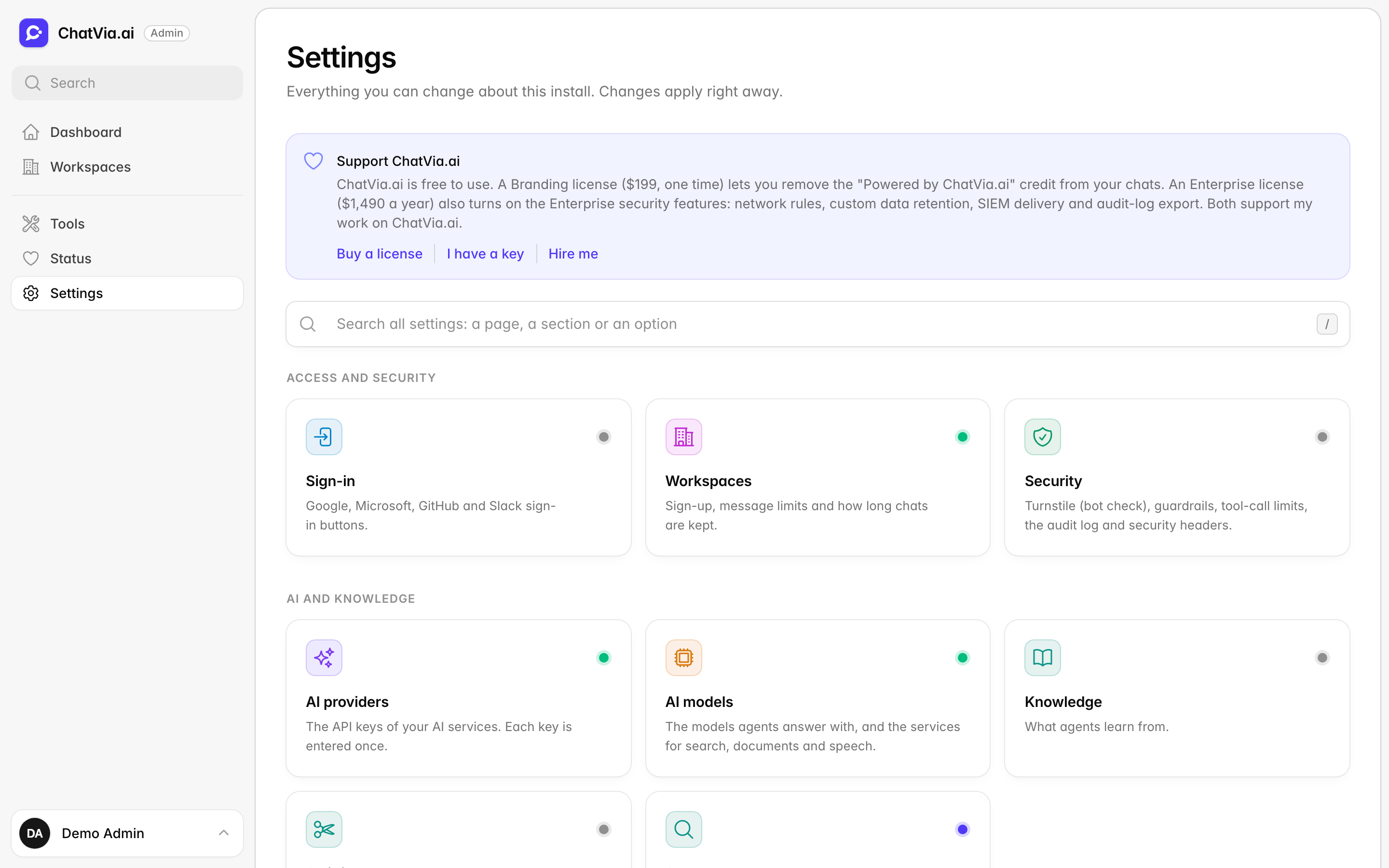
Settings opens on an overview. It has a tile for each settings page, in four groups: Access and security, AI and knowledge, Connections, and Platform and brand. Each tile says what the page holds. A dot on the tile shows its state. Point at the dot to read it, for example "Using the defaults", "2 changes from the defaults", or a warning when a service is half set up.
Searching the settings
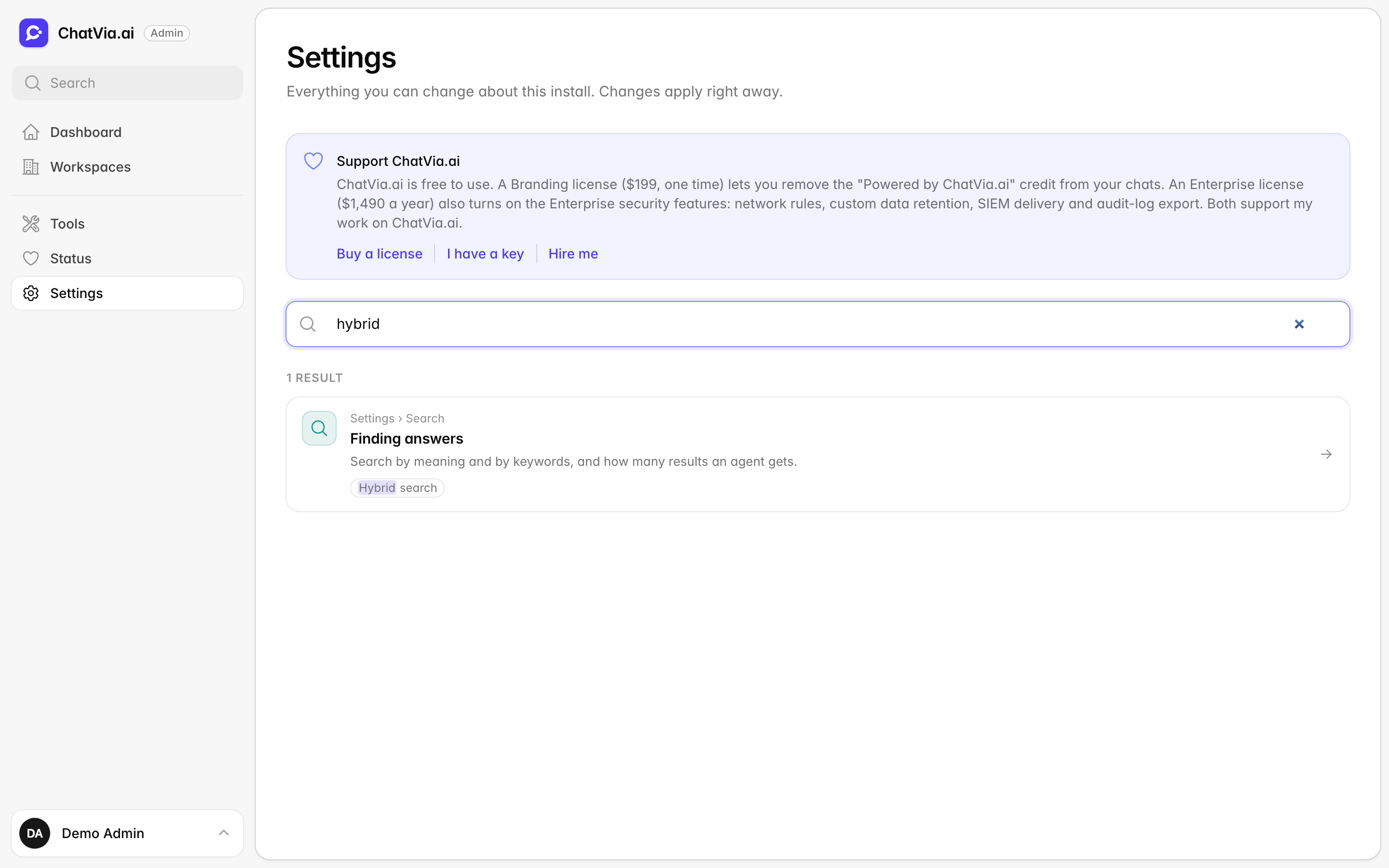
The search box above the tiles searches all of Settings: the pages, the cards on each page, and the names of their options. Type a word or two, such as "smtp port" or "hybrid". The results take the place of the tiles. Each result names its page and opens the card it found. Back in the browser returns you to the results.
Cards
Each settings page is a list of cards. A card is one service (such as Mistral or Google sign-in) or one group of options (such as sign-up and limits). Click a card's title to open or close it. The On this page list on the left jumps to a card, and its Expand all and Collapse all links open or close every card at once.
A card's header shows its state. A service shows Ready to use, Not set up, or what is still missing. A group of options shows a line only when something needs your attention. The Docs link in the header opens the part of these docs about that card.
Some cards hold technical fields in a closed part called Advanced, below their everyday fields. It says which of them you changed, or "The defaults suit most installs."
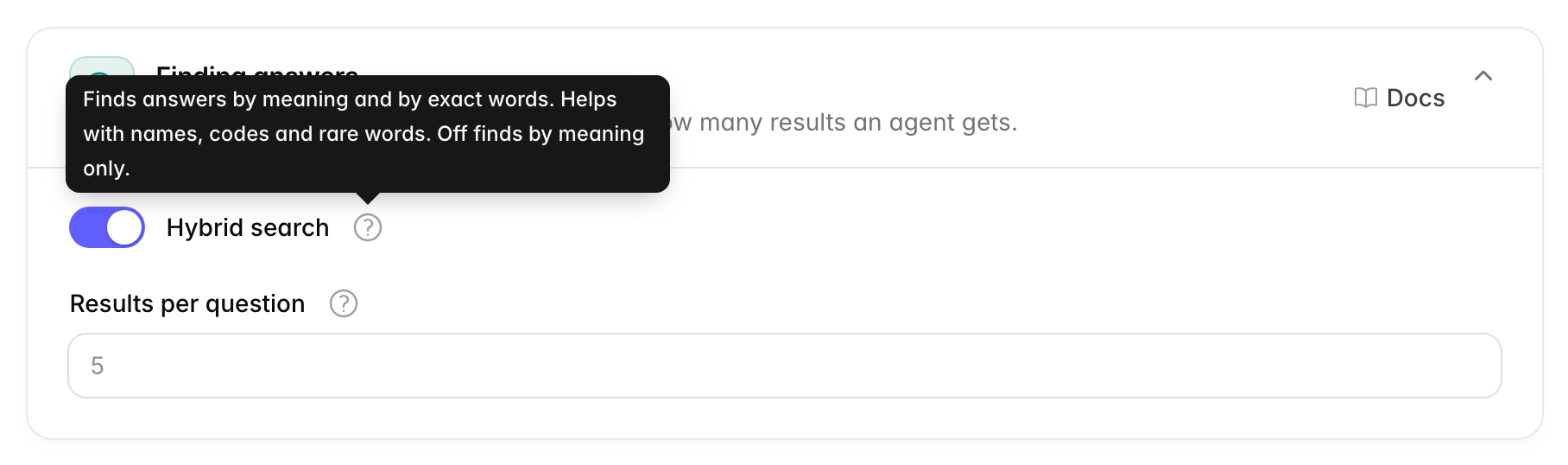
The "?" next to an option
Point at the ? next to an option's name to read what it does, in plain words.
The Advanced cards
On some pages, the last cards sit under an Advanced heading: "Technical options. The defaults suit most installs." These cards start closed. Most installs never need them.
Blank means the default
An empty field uses its default value, which shows in the field in grey. Clear a field to go back to the default. A switch or a choice that you leave at its default is not saved, so if the default changes in a later version of Chatvia, your install follows it.
Some defaults can be preset in the server's .env file, a text file on the
server with the install's basic settings (see
environment file). A value
saved in the admin panel wins over it.
Keys and passwords are write-only
An API key is a secret code that lets Chatvia use your account at another service, much like a password made for a program (see API key). API keys, secrets and passwords are never shown again once saved, so nobody can read them off your screen. The field says Saved, with a lock, and stays empty.
- To keep the saved value, leave the field empty and save.
- To change it, type the new value and save.
- To remove it, press the trash button next to the field and confirm. The window tells you what stops working without it.
Saving
Each page has one Save changes button, at the bottom, which stays in
view as you scroll. It saves every card on the page. You can also press
Ctrl+S (⌘S on a Mac).
Changes apply right away, everywhere, also to the background workers. A few options say on the page when they work differently. For example, a new embedding model makes Chatvia prepare all your documents for search again (see embedding).
Some services are checked before they are saved. A refused API key, for example, is not saved, and the field shows why.
The settings pages
| Page | What it holds |
|---|---|
| Access and security | |
| Sign-in | Google, Microsoft, GitHub and Slack sign-in buttons. |
| Workspaces | Sign-up, message limits, owner accounts and how long chats are kept. |
| Security | Turnstile (bot check), guardrails (safety checks on chats), tool-call limits, the audit log and security headers. |
| AI and knowledge | |
| AI providers | The API keys of your AI services. Each key is entered once. |
| AI models | The models agents answer with, and the services for search, documents and speech. |
| Knowledge | The file types people can upload, the web scraper, and AI enhancement. |
| Splitting | How texts are cut into small parts (chunks) before agents search them. |
| Search | How agents find the parts of their sources that answer a question. |
| Connections | |
| Channels | Meta apps for Messenger, Instagram and WhatsApp. |
| Connectors | OAuth apps (the "connect your account" kind) for GitHub, Gmail, Slack and more, and the services behind the built-in tools. |
| Platform and brand | |
| Platform | Language, tracking code, visitor location, PDF maker, queue workers, programs and logs. |
| How Chatvia sends email: SMTP, Amazon SES, Mailgun, Postmark, Resend and more. | |
| Storage | Where files are kept: this server or S3-compatible storage (rented online storage). |
| Backups | Backups of the database and Redis on a schedule, encrypted with your key, and how to restore one. |
| Observability | Pulse, the app's health, and Spectra, the log of every AI call. |
| Widget | Where the Chat Widget may load, how much it may be used, and what it shows. |